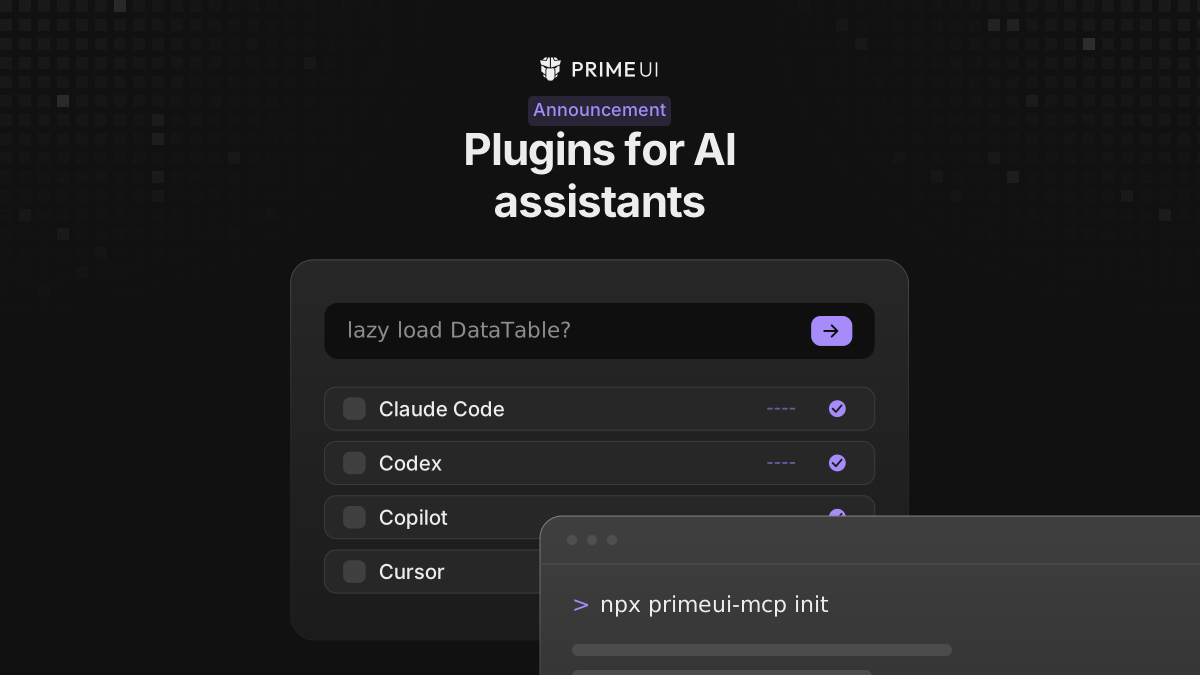
Ask a coding assistant for a PrimeVue DataTable and you often get code for a version that shipped two years ago. The model learned from whatever was on the internet when it was trained, and component APIs move, so the answer it gives you is an old answer rather than a wrong one.
primeui-plugins is our answer to that. There is one plugin per library, and each one connects an MCP server that serves the current documentation, APIs and examples, and that can check the code the assistant wrote.
Installing
Use @primeui/cli. It works the same across every assistant:
pnpm dlx @primeui/cli plugin install --tool claude --library primevueThe values for --tool are claude, codex, copilot, cursor and gemini,
and you use copilot for both GitHub Copilot CLI and VS Code, since VS Code
discovers what the CLI installed. For --library you pass primevue, primeng
or primereact.
If your assistant has a marketplace you can install from there instead. For Claude Code:
claude plugin marketplace add primefaces/primeui-plugins
claude plugin install primevue@primeui
Codex uses codex plugin add and Copilot uses copilot plugin install. Cursor
and Gemini CLI install from a local clone instead, so for those two you need the
repository kept somewhere permanent rather than in a throwaway checkout.
The same CLI covers the rest of the lifecycle:
pnpm dlx @primeui/cli plugin status --tool claude --library primevue
pnpm dlx @primeui/cli plugin update --tool claude --library primevue
pnpm dlx @primeui/cli plugin remove --tool claude --library primevue
When something is not working, run doctor. It checks the installation, starts
the MCP server, confirms the tools are there, and tests documentation retrieval
and usage validation. Checks that an assistant does not support come back as
unsupported rather than failed, and --json gives you the result in
machine-readable form:
pnpm dlx @primeui/cli doctor --tool claude --library primevue --jsonHow the version pinning works
Each plugin pins its MCP server to the library’s major line:
| Plugin | MCP package |
|---|---|
primevue | @primevue/mcp@>=5.0.0 <6.0.0 |
primeng | @primeng/mcp@>=22.0.0 <23.0.0 |
primereact | @primereact/mcp@>=11.0.0 <12.0.0 |
Those ranges line up with the current majors, and the MCP packages carry the
same version as the library they document: @primeng/mcp is 22.1.0,
@primevue/mcp is 5.0.1, @primereact/mcp is 11.1.0.
So an assistant working on a PrimeNG 22 project gets PrimeNG 22 answers, and when you move to 23 the plugin moves with you instead of quietly serving the old API.
The skills each plugin installs
Each plugin installs workflow skills, seven for PrimeVue and PrimeNG, six for PrimeReact, which currently has no migration skill:
- setup and installation
- component implementation
- theming and customization
- accessibility and icons
- router integration
- audit and troubleshooting
- migration (PrimeVue and PrimeNG)
A skill is a procedure, not a page of documentation the model reads and paraphrases. The theming skill, for example, tells the assistant to inspect what your project already does (which preset, styled or unstyled, the dark mode selector, CSS layers, any global pass-through) and to preserve all of that unless changing it is the task it was given.
The PrimeReact router goes further and picks a mode first: styled, tailwind,
primitive or headless, read from evidence in your project. The skills are
written not to mix them, because the same component has a different
customization story in each mode and an answer that borrows from two of them
does not work in either.
Then there is the rule for what happens when the evidence runs out. From the PrimeReact plugin documentation:
If project evidence is ambiguous or the documentation does not confirm an API, the skill reports the limitation instead of borrowing guidance from another mode.
Without that rule an assistant fills the gap with a plausible-looking prop name from a neighbouring library and presents it as fact, which is the failure people run into most often.
The MCP tools
Behind the skills, the server exposes eight tools: list and search to find
things, get_component for a component’s API metadata, get_guide and
get_setup for guide and installation docs, get_example for a source-backed
example, validate_usage to check finished code, and version for what the
server and its data are.
validate_usage is the tool that changes what you end up reviewing. The
assistant writes the component, then asks the server whether that usage is valid
for your version, so what reaches you has been checked against the real API
rather than only looking right. It takes a batch as well, so a whole file can go
in one call instead of one call per component.
None of these tools write anything. Every one of them is annotated read-only and answers from documentation generated out of the library source, and the server does not touch your project.
A few things to keep in mind
Install one plugin rather than all three. Each one is scoped to its library, and if you install all of them the assistant has three sources to choose between instead of one it can trust.
If you clone for Cursor or Gemini CLI, clone main and point the client at the
one plugin directory you want (plugins/primevue, and so on) rather than at the
repository root, which carries all three. Each MCP package carries its own
LICENSE.md, and that file is the PrimeUI licence: the same Community and
Enterprise terms that cover the libraries,
applied to the package you installed.