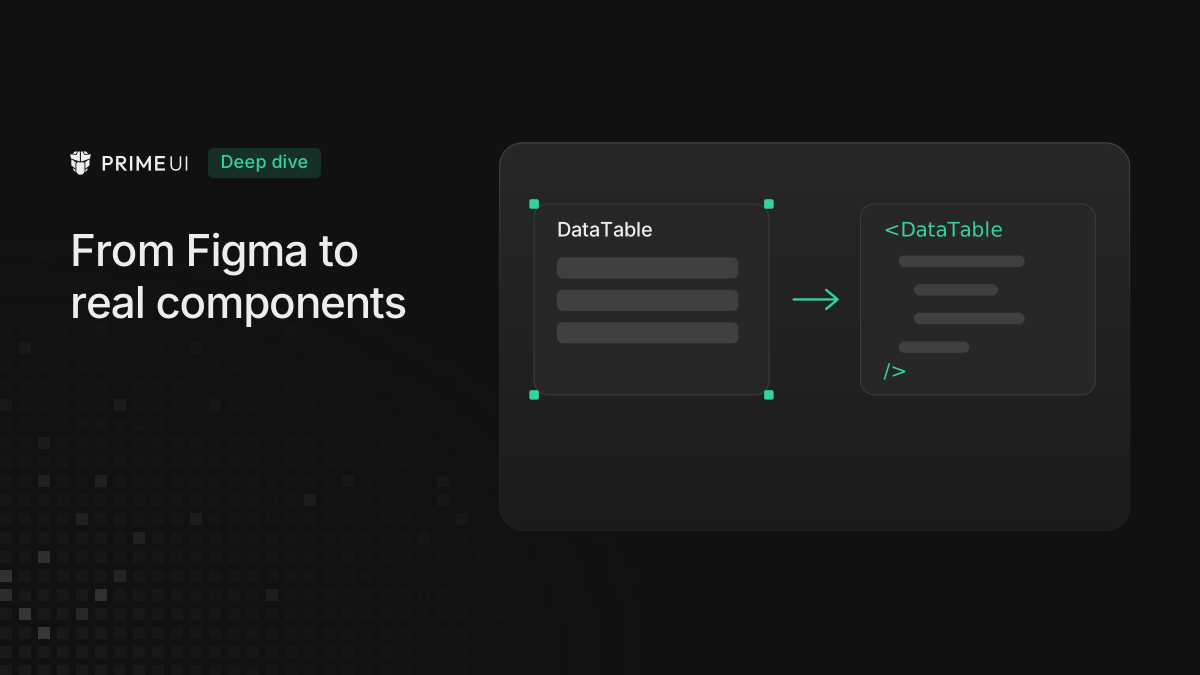
Ask an AI tool to turn a Figma frame into code and you usually get something that looks right and is useless. Nested divs, hardcoded hex values, a table built from scratch. It matches the picture, and it ignores the fact that you already have a DataTable that does all of that.
The reason is that nothing in the file tells Figma which components you own. Code Connect is how you tell it.
The MCP server and Code Connect
These two get conflated constantly, and none of the configuration makes sense until you separate them.
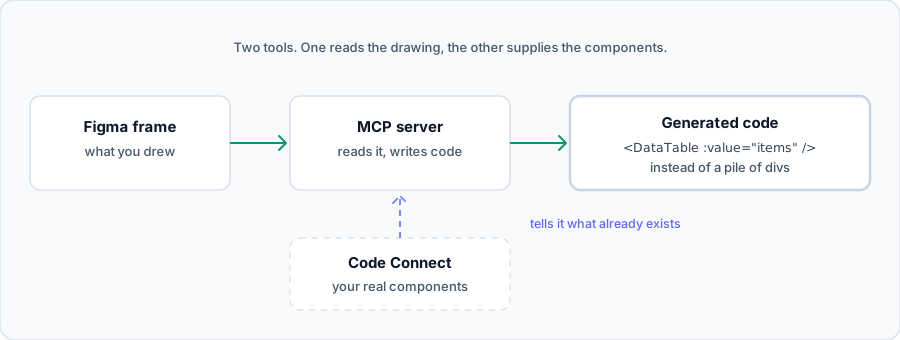
The Figma MCP server is the part that reads a frame and produces code. You select something on the canvas, your editor asks the server what it is, and the server describes the layout, the variables and the structure.
Code Connect does not generate anything. It goes the other direction: you point it at components you have already written, and it maps them to components in Figma. Once that mapping exists, Dev Mode stops showing generic snippets and starts showing your code.
Run the MCP server alone and you get plausible markup. Run both and the
generated output reaches for <DataTable>, because it now knows <DataTable>
exists.
Setting that mapping up is most of the work, and it starts with what Figma requires before you can use Code Connect at all.
What you need
Code Connect is available on Organization and Enterprise plans and needs a Dev or Full seat, so before you look at any of the tooling, check which plan and which seat you are on. The pieces you connect also have to be real Figma components with named properties. A frame someone drew by hand has nothing to map to.
The MCP server is a smaller commitment. Any Dev or Full seat reaches it, and Figma’s FAQ says it “will eventually be a usage-based paid feature, but is currently available for free during the beta period.” Plan for that cost arriving later.
You also need a components library in Figma that mirrors your code library. Without one you are mapping designs to components that only exist on one side, and the mapping will drift the first time either side changes.
Setting up Code Connect
Install the CLI and create a config at the root of your component library:
npm install --save-dev @figma/code-connect{
"codeConnect": {
"include": ["src/components/**/*.figma.ts"]
}
}Then write one file per component. The current format is a template file: a TypeScript module that reads properties off the selected Figma instance and returns the snippet to display.
The format matters if you are following an older tutorial. Code Connect used to
ship framework-specific parsers with a figma.connect() call, and most examples
you will find online still use them. Figma’s own docs now say those parsers no
longer receive updates and that template files are the only actively maintained
approach. There is a figma connect migrate command for moving across.
Here is a Dialog mapped to PrimeVue:
// url=https://www.figma.com/design/YOUR_FILE/Design-System?node-id=1-234
import figma from 'figma';

const instance = figma.selectedInstance;

const header = instance.getString('Title');
const modal = instance.getBoolean('Modal');
const size = instance.getEnum('Size', {
    Small: "'25rem'",
    Medium: "'35rem'",
    Large: "'50rem'"
});

export default {
    example: figma.code`
<Dialog v-model:visible="visible" header=${header} :modal=${modal} :style="{ width: ${size} }">
    <slot />
</Dialog>
    `,
    imports: ["import Dialog from 'primevue/dialog';"],
    id: 'dialog'
};
The url= comment on the first line ties the file to a specific Figma node.
Copy it from the component’s link in Figma.
Publish it:
npx figma connect publishOpen that component in Dev Mode and the snippet is there.
A template file is code that runs
Figma’s own wording: “Your template is a function that runs and returns a string, which means you write it the way you would write any other code, using conditionals, string interpolation, and arbitrarily complex logic.”
So ordinary branching works, and ${...} evaluates before Figma builds the
snippet:
// The ternary resolves; the snippet gets the result, not the expression
export default {
    example: figma.code`<Button label=${size === 'large' ? 'Big' : 'Small'} />`
};
You can also branch around whole snippets, which reads better once a variant changes the markup rather than one attribute:
const hasLabel = instance.getBoolean('Has Label');

export default {
    example: hasLabel ? figma.code`<InputField label=${label} />` : figma.code`<Input />`
};
What you have to keep in mind is that you are producing source text. Whatever
you interpolate lands in someone’s editor verbatim, so the getEnum map above
has to carry its own quotes:
const size = instance.getEnum('Size', {
    Small: "'25rem'", // quotes are part of the emitted string
    Large: "'50rem'"
});
Drop the inner quotes and the reader gets width: 25rem where the Vue snippet
needed width: '25rem'.
React and Angular
The figma.code template is framework-agnostic, so the shape of the file does
not change. Only the snippet and the import line do.
PrimeReact 11 takes more work than the other two, because its Dialog is a set of composable parts rather than a single element with props. The snippet you emit is longer, and this is the case where a mapping pays for itself: the part order is not something you recall from memory.
import figma from 'figma';

const instance = figma.selectedInstance;
const title = instance.getString('Title');

export default {
    example: figma.code`
<Dialog.Root>
    <Dialog.Trigger as={Button}>Open</Dialog.Trigger>
    <Dialog.Portal>
        <Dialog.Positioner>
            <Dialog.Popup>
                <Dialog.Header>
                    <Dialog.Title>${title}</Dialog.Title>
                </Dialog.Header>
                <Dialog.Content>{children}</Dialog.Content>
            </Dialog.Popup>
        </Dialog.Positioner>
    </Dialog.Portal>
</Dialog.Root>
    `,
    imports: ["import { Dialog } from '@primereact/ui/dialog';"],
    id: 'dialog'
};
Note the import path. In v11 components come from @primereact/ui/* rather than
primereact/*, so a mapping written against a v10 tutorial emits an import that
does not resolve.
PrimeNG:
import figma from 'figma';

const instance = figma.selectedInstance;
const header = instance.getString('Title');
const modal = instance.getBoolean('Modal');

export default {
    example: figma.code`
<p-dialog header=${header} [(visible)]="visible" [modal]=${modal}>
    <ng-content />
</p-dialog>
    `,
    imports: ["import { Dialog } from 'primeng/dialog';"],
    id: 'dialog'
};
One thing you will run into while reading around: Code Connect’s older parser-based integration covered React directly and handled Vue and Angular through a generic HTML parser. With template files that distinction is gone, since you write the output string yourself either way.
Mapping a DataTable
Dialog is an easy component to map. DataTable is the one where this pays off, because a table is what people rebuild by hand when the generator does not know any better.
A table in Figma is a frame with a header row and some body rows. Nothing about it says sorting, lazy loading or selection, so a generator left to itself reproduces the rows it can see and you end up with static markup where you wanted a grid.
With a mapping in place you get something you can work with:
// url=https://www.figma.com/design/YOUR_FILE/Design-System?node-id=5-678
import figma from 'figma';

const instance = figma.selectedInstance;

const selection = instance.getEnum('Selection', {
    None: '',
    Single: 'selectionMode="single"',
    Multiple: 'selectionMode="multiple"'
});
const paginator = instance.getBoolean('Paginator');

export default {
    example: figma.code`
<DataTable :value="items" ${selection} :paginator=${paginator} :rows="10" dataKey="id">
    <Column field="name" header="Name" sortable />
    <Column field="status" header="Status" sortable />
</DataTable>
    `,
    imports: ["import DataTable from 'primevue/datatable';", "import Column from 'primevue/column';"],
    id: 'datatable'
};
The columns here are a starting point rather than a description of the drawing, and that is deliberate, because Code Connect shows one canonical snippet per component rather than transcribing each instance. Someone still has to bind the real fields, and that is where the tooling stops: it gets you to the right component with the right props, and the feature is still yours to write.
What it costs
One file per component, kept current as the API changes. On a library the size of Prime’s you would not do all of it. Pick the twenty or so components that carry most of your screens and skip the rest.
What you get back is that people stop rebuilding a table that already exists and stop guessing at prop names. The generated starting point uses the same components as the rest of the codebase, so a review can be about the feature instead of about undoing a pile of divs.
Writing the mappings also surfaces drift. If a variant exists in Figma and has no equivalent in code, you find out while writing the mapping, which is a much better time to find out than during a handoff.
Start with one component. Publish it, open Dev Mode, and see whether the snippet is the one you would have written.