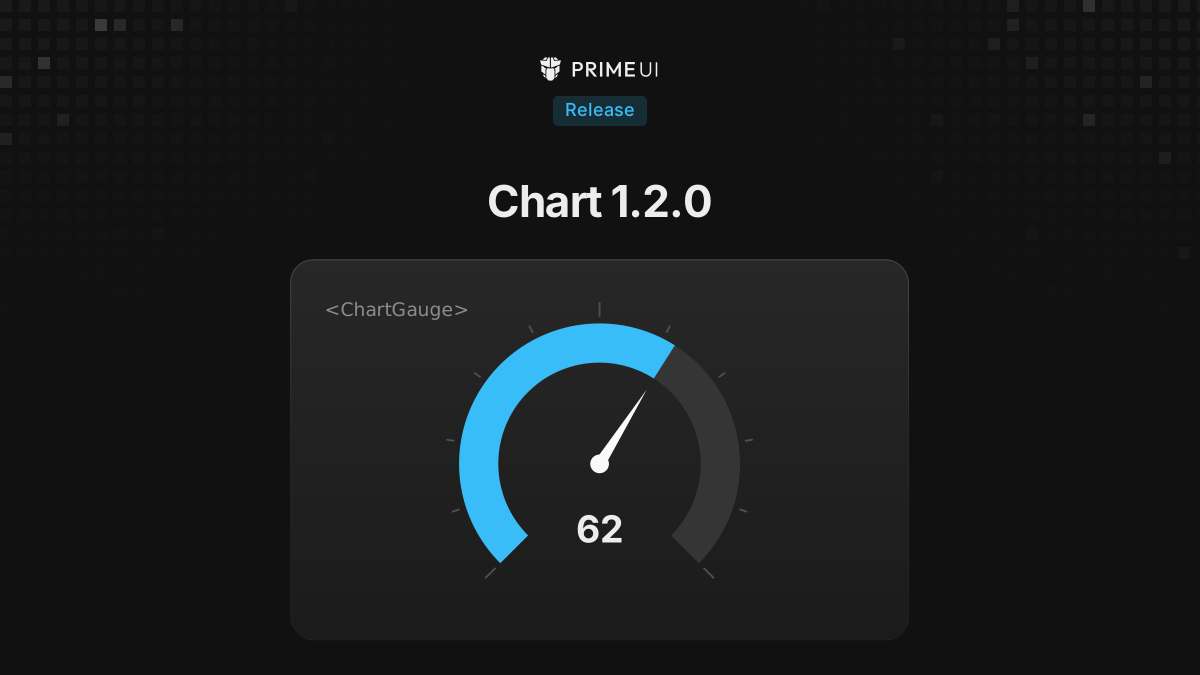
Chart 1.2.0 is out for Vue, React and Angular. It adds a chart type,
ChartGauge, and two animation options. The rest are fixes, a few of them
framework specific.
npm install @primeui/[email protected]
npm install @primeui/[email protected]
npm install @primeui/[email protected]
Gauge
A gauge places a value on a numeric axis that is bent into an arc. That makes it a different chart from a pie or a donut, even though it looks close to one. In a pie, an angle is a share of a total. In a gauge, the angle is a position between a declared minimum and maximum, so a single reading is placed, not divided.
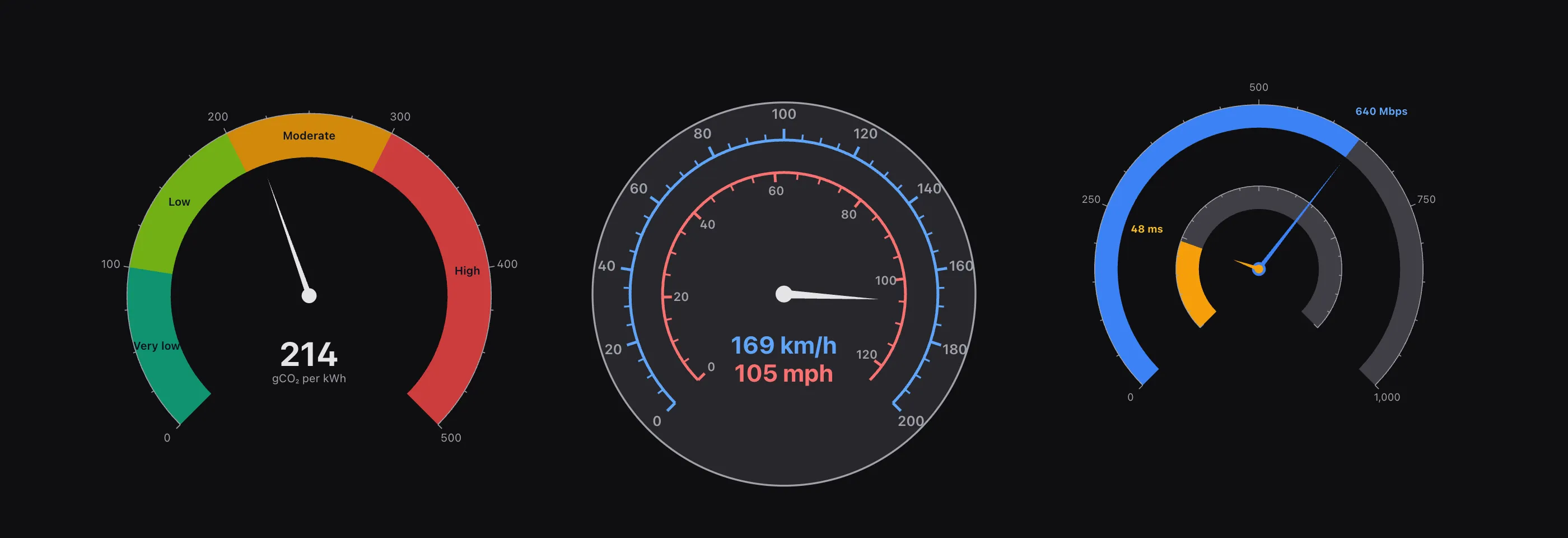
ChartGauge is a series like ChartBar or ChartLine, and ChartXAxis draws
its tick ring. The smallest useful gauge is a reading, a domain and an axis.
Here it is in all three frameworks, with the fill colour picked from the
reading:
import { ChartGauge, ChartSvg, ChartXAxis } from '@primeui/react-chart';

const data = [{ label: 'Air quality', value: 138 }];

function bandColor(ctx: { value: number | null }) {
    const v = ctx.value ?? 0;

    return v > 150 ? '#ef4444' : v > 100 ? '#f59e0b' : '#10a981';
}

export function AirQuality() {
    return (
        <ChartSvg width={460} height={460}>
            <ChartGauge data={data} valueXField="value" categoryField="label" min={0} max={300} innerRadius={0.74} color={bandColor} needleColor={bandColor} trackColor="#e2e8f0" />
            <ChartXAxis />
        </ChartSvg>
    );
}<script setup lang="ts">
import { ChartGauge, ChartSvg, ChartXAxis } from '@primeui/vue-chart';
import { ref } from 'vue';
const data = ref([{ label: 'Air quality', value: 138 }]);
function bandColor(ctx: { value: number | null }) {
const v = ctx.value ?? 0;
return v > 150 ? '#ef4444' : v > 100 ? '#f59e0b' : '#10a981';
}
</script>
<template>
<ChartSvg :width="460" :height="460">
<ChartGauge
:data="data"
value-x-field="value"
category-field="label"
:min="0"
:max="300"
:inner-radius="0.74"
:color="bandColor"
:needle-color="bandColor"
track-color="#e2e8f0"
/>
<ChartXAxis />
</ChartSvg>
</template>import { Component } from '@angular/core';
import { ChartModule } from '@primeui/angular-chart';
@Component({
selector: 'air-quality',
imports: [ChartModule],
template: `
<p-chart-svg [width]="460" [height]="460">
<p-chart-gauge [data]="data" valueXField="value" categoryField="label" [min]="0" [max]="300" [innerRadius]="0.74" [color]="bandColor" [needleColor]="bandColor" trackColor="#e2e8f0" />
<p-chart-x-axis />
</p-chart-svg>
`
})
export class AirQuality {
readonly data = [{ label: 'Air quality', value: 138 }];
readonly bandColor = (ctx: { value: number | null }) => {
const v = ctx.value ?? 0;
return v > 150 ? '#ef4444' : v > 100 ? '#f59e0b' : '#10a981';
};
}The three differ only in the template syntax. Props, defaults and callbacks are
the same, and so is the rendered chart. Both renderers draw it: swap ChartSvg
for ChartCanvas and nothing else changes.
The domain is declared, not inferred
min and max default to 0 and 100. The gauge does not size its scale from
the data, because a scale inferred from the readings would move every time the
reading changed, and the needle’s angle would stop meaning anything. If the real
full scale is not a percentage, declare it. A ChartXAxis with its own min
and max outranks the series, and declaring the domain in both places logs a
warning in development.
A reading outside the domain is clamped to the arc end. overshoot lets the
needle travel a few degrees past the end, so an out-of-range value is visibly
out of range instead of resting on the last tick. For a clock or a compass,
wrap carries a value past max around to min. It is on by default when the
sweep is a full circle.
Shape
startAngle and endAngle are in degrees, with 0 pointing right and angles
running clockwise. The default 135 to 405 is a 270 degree sweep with the
opening at the bottom. 180 to 360 is a half circle across the top, and the
gauge is sized to fit that arc. A half circle keeps its full width in a
container half as tall, with no empty half below it.
innerRadius and outerRadius are ratios of the chart radius, and they set the
frame: the ring the ticks, labels and bands are laid out on. The bar can be
narrower than that frame with barInnerRadius and barOuterRadius, which is
how a wide track sits behind a thin reading without moving the ticks.
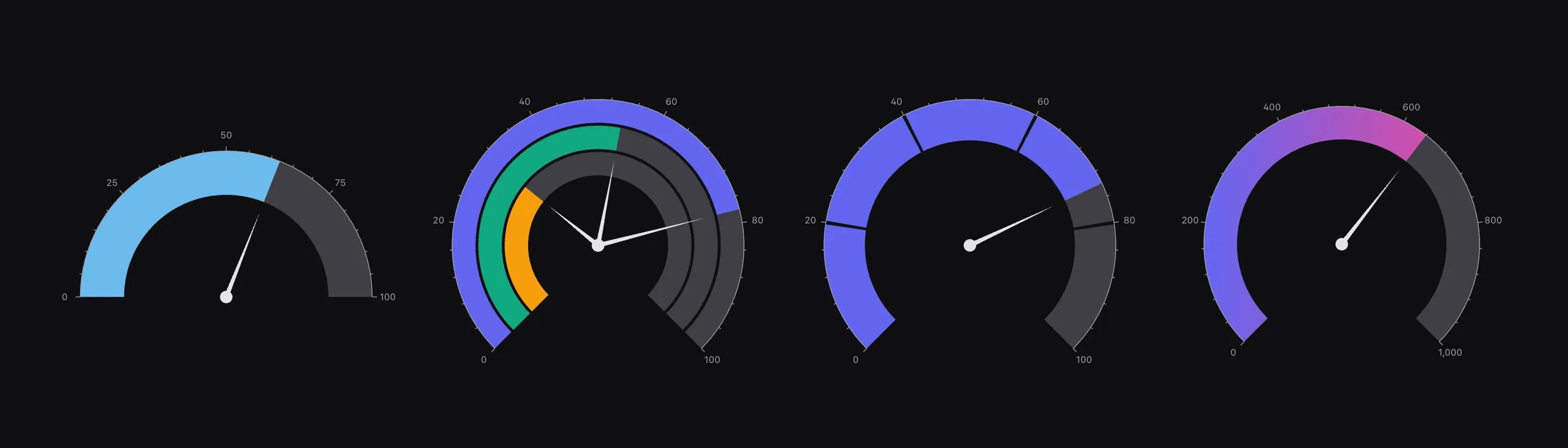
Bar, needle, or both
By default a reading draws a filled bar from min to the value and a needle on
top of it. needle={false} leaves only the bar, which is the radial progress
style. bar={false} leaves only the needle over a labelled scale, and drops the
unfilled track too, since the track belongs to the filled style.
Several rows in data draw several readings on the same scale, each with its
own bar and needle. The largest bar is painted underneath, so every smaller
reading stays visible on top. Use this for a current value against a target or a
previous period.
For readings that do not share a scale, give each ChartGauge its own radii.
They become concentric rings, each with its own track and needle. Binding a
gauge to a named axis with xAxisId gives each ring its own domain. Two axes on
the same gauge can also label one reading in two units, as the speedometer above
does with km/h and mph.
segments cuts the track and the bar at given values, and spacing sets the
gap in pixels. Wrapping gauges in ChartStacked accumulates them along one
scale instead, each segment starting where the previous one ended.
Bands, lines and the centre
The rest of the chart vocabulary carries over. ChartReferenceBand with x1
and x2 shades a range of the scale, and draws under the bar unless
placement="afterData" puts it on top. ChartReferenceLine with x draws a
spoke across the ring at that value. ChartTooltip, ChartLegend,
ChartHover, ChartDataLabels and ChartAnnotation all work on a gauge.
The carbon intensity gauge in the first screenshot is four bands, a needle-only reading and custom content in the centre:
import { ChartGauge, ChartHover, ChartReferenceBand, ChartSvg, ChartTooltip, ChartXAxis, type GaugeRenderContext } from '@primeui/react-chart';
type Reading = { label: string; value: number };
const reading: Reading[] = [{ label: 'Carbon intensity', value: 214 }];
const bands = [
{ id: 'very-low', from: 0, to: 100, fill: '#10a981', label: 'Very low' },
{ id: 'low', from: 100, to: 200, fill: '#84cc16', label: 'Low' },
{ id: 'moderate', from: 200, to: 300, fill: '#f59e0b', label: 'Moderate' },
{ id: 'high', from: 300, to: 500, fill: '#ef4444', label: 'High' }
];
function renderReading(ctx: GaugeRenderContext<Reading>) {
return (
<g>
<text textAnchor="middle" dominantBaseline="central" y={62} fontSize={36} fontWeight={700} fill="var(--p-chart-data-label-color, light-dark(#334155, #e4e4e7))">
{Math.round(ctx.animatedValue)}
</text>
<text textAnchor="middle" dominantBaseline="central" y={88} fontSize={12} fill="var(--p-chart-tick-label-color, light-dark(#666666, #a1a1aa))">
gCO₂ per kWh
</text>
</g>
);
}
export function CarbonIntensity() {
return (
<ChartSvg width={480} height={480}>
<ChartGauge bar={false} data={reading} valueXField="value" categoryField="label" min={0} max={500} innerRadius={0.76} renderContent={renderReading} />
{bands.map((band) => (
<ChartReferenceBand key={band.id} x1={band.from} x2={band.to} fill={band.fill} fillOpacity={0.85} label={band.label} labelColor="#0b1120" labelFontWeight={600} />
))}
<ChartHover />
<ChartTooltip />
<ChartXAxis minorGridCount={4} />
</ChartSvg>
);
}renderContent runs on every animation frame. It gets value, the settled
reading, and animatedValue, the one in flight, so a count-up number stays in
step with the needle. For a plain reading it can return a { text, style }
descriptor, in all three frameworks. Richer content in SVG mode is JSX in React
and a VNode built with h() in Vue. Angular projects a template for that
instead of returning markup from a function:
<p-chart-gauge [bar]="false" [data]="reading" valueXField="value" categoryField="label" [min]="0" [max]="500" [innerRadius]="0.76">
    <ng-template pChartGaugeContentDef let-ctx>
        <svg:text text-anchor="middle" dominant-baseline="central" y="62" font-size="36" font-weight="700" fill="var(--p-chart-data-label-color, light-dark(#334155, #e4e4e7))">{{ round(ctx.animatedValue) }}</svg:text>
    </ng-template>
</p-chart-gauge>
Screen readers
Each reading has an accessible description, on its needle and on its bar, so a
gauge with needle={false} still announces its value. A bar split by segments
is announced once, not once per piece.
Colour transitions
Until 1.2.0, a colour change snapped. A new palette, an edited color prop or a
theme switch replaced the old colour at once. animation.colors interpolates it
instead:
<ChartSvg animation={{ colors: true }}>...</ChartSvg>It uses the same duration and easing as the rest of the chart’s animation. The
option is off by default, so existing charts behave as they did. Heatmap and
treemap are the exception and default to on, because their colour encodes the
value, and snapping it hides a data change. Setting colors: false turns it off
there too.
A series with no color set still snaps. Its fill comes from the
.p-chart-color-N rule in the stylesheet (SVG) or from the palette resolved at
paint time (canvas), so there is no colour value in JavaScript to interpolate
from. Setting a colour, a colour scale or a per-datum colour array makes the
series eligible.
If you had a named animation with type: 'color', it is now a type error. That
option was accepted by the types but never implemented: the entry fell through
to the numeric interpolation and wrote NaN. NamedAnimationSpec now takes
type: 'number' and numeric from and to only.
Entrance and update timing
duration, easing and delay used to apply to both the first render and
every later data change. The new update scope gives data changes their own
timing, and any field it omits falls back to the base value:
<ChartSvg animation={{ duration: 1000, update: { duration: 200 } }}>...</ChartSvg>The default 1000ms entrance reads well on first paint. On a chart that updates more often than that, each tween restarts from wherever the previous one was interrupted, so the drawn value trails the data. A shorter update duration fixes that without touching the entrance.
Exits follow the update scope too, since an element leaves because the data
changed. That makes update: { delay: 0 } the way to keep an entrance delay
from also pausing every later update:
<ChartSvg animation={{ delay: 600, update: { delay: 0 } }}>...</ChartSvg>A container resize no longer replays the entrance animation. A resize arrives as a stream of size changes, so animating it would leave the marks trailing a container that is still moving.
Fixes
In all three frameworks:
minorTicksdraws on its own. Minor tick positions now come from the major ticks, sominorGridLinesandgridLinesno longer have to be on for minor ticks to appear.- A tooltip or hover highlight left open while the data changes shows the new values. Previously it held the reading from before the update.
- Hover effects only apply when a
ChartHoveris present. - SVG colour props are no longer overridden once the chart stylesheet is loaded.
- The colour legend’s indicator and tick labels sit in the right place and follow the theme.
React only: callbacks passed to chart components, axes and legends read the latest render. A repaint used to call the version captured when the component first mounted, with whatever values it had closed over then.
Vue only: server-rendered charts hydrate without a mismatch, because chart ids are now the same on the server and the client. Exports use the chart’s current size instead of the size it had at mount.
Angular only: a colour legend whose content comes only from a
pChartColorLegendDef template reserves its space and renders, including on
charts with no colour scale to infer.
Upgrading
The only change that can fail a build is the type: 'color' narrowing above.
Everything else is additive or a fix. The gauge reference, with live demos, is
on vue.primeuipro.dev,
react.primeuipro.dev and
angular.primeuipro.dev.