The four PrimeUI Pro components now have Angular packages, alongside the Vue packages that went stable in July.
The Angular packages shipped as 1.0.0 on 26 August. Install the stable
versions:
npm install @primeui/angular-scheduler
npm install @primeui/angular-taskboard
npm install @primeui/angular-chart
npm install @primeui/angular-texteditor
They need Angular 20 or newer. TextEditor also pulls in @angular/cdk and
@angular/forms; the other three only need @angular/core and
@angular/common.
The Angular packages are their own implementation
The obvious way to ship a second framework is to wrap the first one. We did not do that. Each package is a native Angular library with its own components, written against Angular’s own primitives, and the thing that carries across from Vue is the composition model rather than any of the implementation.
That model is where these differ most from a normal component library, so let me go through it once. Scheduler is not one component with sixty inputs on it. You assemble it out of small components, and each one can be swapped for another:
<p-scheduler-root>
    <p-scheduler-header>
        <p-scheduler-navigation />
        <p-scheduler-view-selector />
    </p-scheduler-header>
    <p-scheduler-content>
        <p-scheduler-date-week />
    </p-scheduler-content>
</p-scheduler-root>
To change the event chip, provide your own p-scheduler-event. For the agenda
instead of the week grid, swap p-scheduler-date-week for p-scheduler-agenda.
None of this is hidden behind a config object, so the parts you did not ask
about stay out of your way and the parts you did are plain components in your
template.
That makes the Angular surface large: 56 public selectors in Scheduler, 55 in Chart, 32 in TextEditor, 20 in TaskBoard. In practice you use a handful and reach for the rest when a design asks for them.
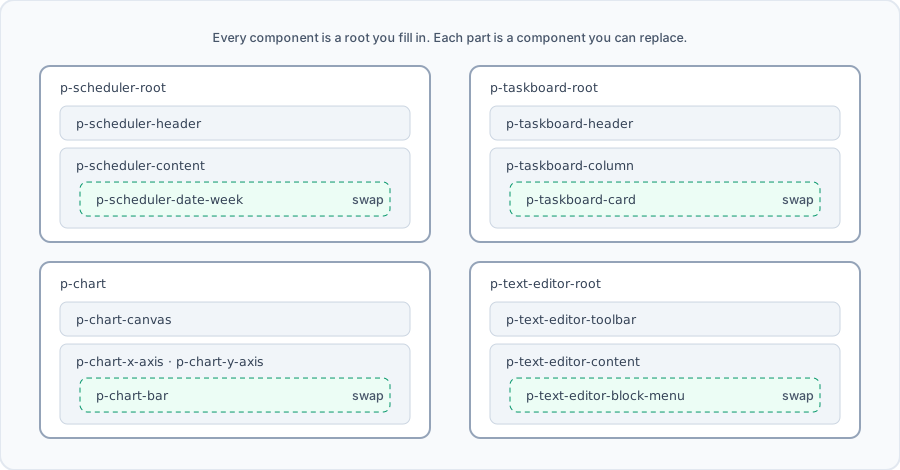
All four follow that shape.
Scheduler
Week, day, month and year views, an agenda, a timeline, and resource views that group events by room, person or machine. All-day rows, a category legend and a context menu come as their own components.
<p-scheduler-root>
    <p-scheduler-header>
        <p-scheduler-navigation />
        <p-scheduler-title />
        <p-scheduler-view-selector />
    </p-scheduler-header>
    <p-scheduler-content>
        <p-scheduler-date-week />
    </p-scheduler-content>
</p-scheduler-root>
The date view is one line. Swap p-scheduler-date-week for
p-scheduler-date-month, p-scheduler-agenda or
p-scheduler-resource-timeline and the rest of the tree stays as it is. The
event chip has a separate component in each view, so a month event and a
timeline event can look nothing alike without a conditional in your template.
TaskBoard
Columns and cards, each with header, content and footer parts, plus swimlanes for a second axis across the board.
<p-taskboard-root>
    <p-taskboard-header />
    <p-taskboard-content>
        <p-taskboard-column>
            <p-taskboard-column-header />
            <p-taskboard-column-content>
                <p-taskboard-card>
                    <p-taskboard-card-header />
                    <p-taskboard-card-content />
                </p-taskboard-card>
            </p-taskboard-column-content>
            <p-taskboard-column-add />
        </p-taskboard-column>
    </p-taskboard-content>
</p-taskboard-root>
The drag machinery is components too: p-taskboard-drag-preview for what
follows the cursor, p-taskboard-drop-indicator for where it will land, and
p-taskboard-drag-confirm for boards where a move has to be approved before it
sticks. There is also a p-taskboard-column-empty, for the state most boards
forget to design.
Chart
Two renderers with cartesian layers on top: bars, lines, candlesticks, each its
own component rather than a type string.
p-chart-svg and p-chart-canvas are two containers to pick between. Use one
of them as the outer tag and put the layers inside it:
<p-chart-canvas>
    <p-chart-bar />
    <p-chart-line />
    <p-chart-x-axis />
    <p-chart-y-axis />
    <p-chart-reference-line />
    <p-chart-legend />
    <p-chart-tooltip />
</p-chart-canvas>
Swap the outer tag for p-chart-svg and the contents are unchanged. SVG gives
you crisp text and selectable elements, canvas will take fifty thousand points.
If the renderer is decided at runtime rather than written into the template,
there is also a p-chart that takes the choice as an input
([renderer]="'canvas'").
Because the layers are components, a combo chart is two tags instead of a
configuration mode. The extras are opt-in and each has a selector:
p-chart-annotation, p-chart-data-labels, p-chart-export-menu,
p-chart-navigator, p-chart-breadcrumb for drill-down, p-chart-decimation
for thinning dense series, and p-chart-accessibility, which gives the chart a
text equivalent for screen readers.
TextEditor
A block editor: a toolbar, the content surface, and menus that appear where you are typing.
<p-text-editor-root>
    <p-text-editor-toolbar />
    <p-text-editor-content />
    <p-text-editor-block-controls />
    <p-text-editor-context-toolbar>
        <p-text-editor-context-toolbar-more />
    </p-text-editor-context-toolbar>
</p-text-editor-root>
The context toolbar is the one that follows a selection, and it gets an overflow
menu when it runs out of room. p-text-editor-block-menu and its submenu handle
the slash command, with a mention menu alongside. Uploads have their own parts,
p-text-editor-image-upload and p-text-editor-document-upload, and the latter
comes with a dropzone and a progress component.
The navigator, which is an outline of the document, lives in
TextEditorNavigatorModule and only ships if you import it. Every part works
that way: the package exposes a subpath per component, so
@primeui/angular-texteditor/parts/navigator pulls in the navigator and nothing
else. Import the whole module while you are trying things out, then narrow it
down once you know what you are shipping.
Which versions are out
1.0.0 shipped on 26 August, so npm install @primeui/angular-scheduler gets
you a stable release. Semver applies from here: the next breaking change gets a
major version.
The Vue packages are the older sibling, with the same components and the same
composition. They shipped as 1.0.0 in July and Scheduler and Chart have since
moved on to 1.1.0. React has not been published.
Getting a scheduler on screen
Angular components are standalone, so import what you use:
import { Component } from '@angular/core';
import { SchedulerModule } from '@primeui/angular-scheduler/module';

@Component({
    selector: 'app-calendar',
    imports: [SchedulerModule],
    template: `
        <p-scheduler-root>
            <p-scheduler-content>
                <p-scheduler-date-week />
            </p-scheduler-content>
        </p-scheduler-root>
    `
})
export class CalendarComponent {}
The /module subpath matters here. SchedulerModule is the aggregate that
pulls in every view engine, and it lives there rather than on the package root.
A view will not render without its engine registered, and the root package only
gives you the shell components, so the engine that draws the week grid has to be
registered separately. Importing SchedulerModule registers all of them, which
is what you want while you are trying things out. When you know you only need
one view, take the focused provider instead and leave the other seven out of
your bundle:
import { Scheduler, SchedulerContent } from '@primeui/angular-scheduler';
import { provideSchedulerMonthView } from '@primeui/angular-scheduler/views/month';

@Component({
    imports: [Scheduler, SchedulerContent],
    providers: [provideSchedulerMonthView()]
})
export class MonthSchedule {}
If you get this wrong the component tells you. In development it warns that no rendering engine is registered for the view, and it names the entry point you need to import.
Data goes on the root rather than on the parts below it. p-scheduler-root
carries the bindings: events, and view and date as two-way models.
<p-scheduler-root [events]="events" [(view)]="view" [(date)]="date">
    <p-scheduler-content>
        <p-scheduler-date-week />
    </p-scheduler-content>
</p-scheduler-root>
Composition and configuration are two separate things here. The tree decides what is rendered and what it looks like, and the inputs on the root decide what the component knows. Scheduler has well over a hundred inputs, so treat that part of the reference as a lookup rather than something to read through.
Each package also exposes a /context entry point, which is how the child
components talk to the one above them. You need it when you are writing your own
piece to slot into the tree, and not before.