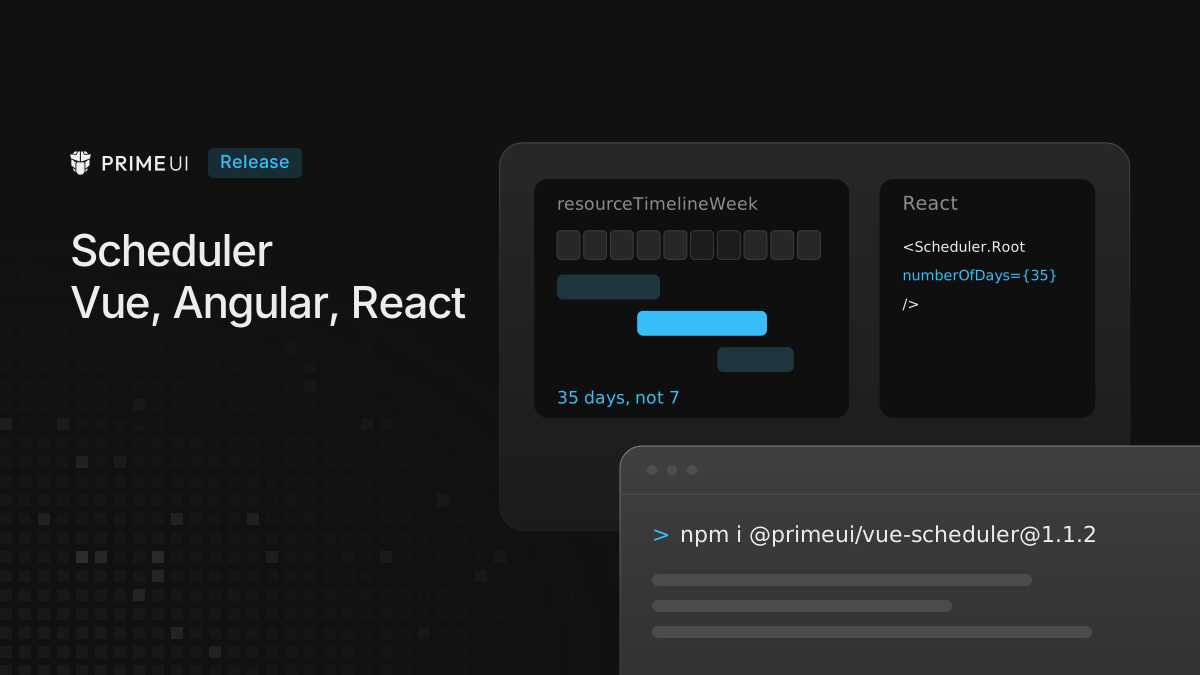
This post covers two small Scheduler releases per framework: Vue 1.1.2 and
1.1.3, React 1.0.1 and 1.0.2, and Angular 1.0.2 and 1.0.3. The first release of
each pair did not get its own post. The newer versions are built on
@primeui/scheduler-core 1.0.7, and the changes are almost all in the timeline
views: numberOfDays on week timelines, custom header content, narrow slots,
display time zones and right-to-left layouts. Month timeline edits, resource
groups and editing while scrolling are fixed as well. A few changes alter what
an existing timeline shows, and they are listed at the end.
npm install @primeui/[email protected]
npm install @primeui/[email protected]
npm install @primeui/[email protected]
Day windows on week timelines
numberOfDays on timelineWeek and resourceTimelineWeek was ignored, and the
view always showed seven days. A 35 day window with hourly slots rendered 168
cells instead of 840.
The count works again. A positive integer starts the window on the selected day, and the previous and next buttons move by that many days:
<Scheduler.Root v-model:date="date" view="resourceTimelineWeek" :number-of-days="35">
    <!-- ... -->
</Scheduler.Root><Scheduler.Root date={date} onDateChange={setDate} view="resourceTimelineWeek" numberOfDays={35}>
{/* ... */}
</Scheduler.Root><p-scheduler-root [(date)]="date" view="resourceTimelineWeek" [numberOfDays]="35">
<!-- ... -->
</p-scheduler-root>Without a value, or with a value that is not a positive integer, the views show normal weeks. A changed value updates the view in place, and weekday and hour filters apply inside the window. Month timelines are not affected.
Custom content in timeline headers
Custom content in a timeline header cell rendered inside the built-in label, which is sticky and has its own padding and maximum width. Content meant to fill the cell was squeezed into the label, and an 80px tall block made the header 181px tall.
Custom content now renders in its own wrapper, which fills the cell. The cell
carries data-custom-content and has no padding:
.p-scheduler-timeline-header-cell[data-custom-content] {
    overflow: clip;
    padding: 0;
    align-items: stretch;
}

.p-scheduler-timeline-header-cell > .p-scheduler-timeline-header-cell-content {
    display: flex;
    width: 100%;
    height: 100%;
}
The same 80px block now gives an 81px header, and a background or a border on the custom content paints the whole cell. Default headers keep the sticky label. Since the padding is gone, the custom content brings its own.
In Vue, the replacement child of Scheduler.TimelineHeaderCell receives the
cell as props, typed by the new SchedulerTimelineHeaderCellPayload:
<!-- PlanningHeader.vue -->
<script setup lang="ts">
import type { SchedulerTimelineHeaderCellPayload } from '@primeui/vue-scheduler';

const props = defineProps<Partial<SchedulerTimelineHeaderCellPayload>>();
</script>

<template>
    <div class="planning-header">{{ props.label }}</div>
</template>

<style scoped>
.planning-header {
    padding: 0.5rem 0.75rem;
}
</style><Scheduler.TimelineHeaderCell>
<PlanningHeader />
</Scheduler.TimelineHeaderCell>The payload holds date, startDate, endDate, label, width and the
cell model. The props are declared optional because the scheduler injects them
after Vue checks the child.
A planning header
This planning view puts the day and a capacity track inside each daily header cell. The track uses the primary color, with a warning color above 85%. Month and time rows keep their labels.
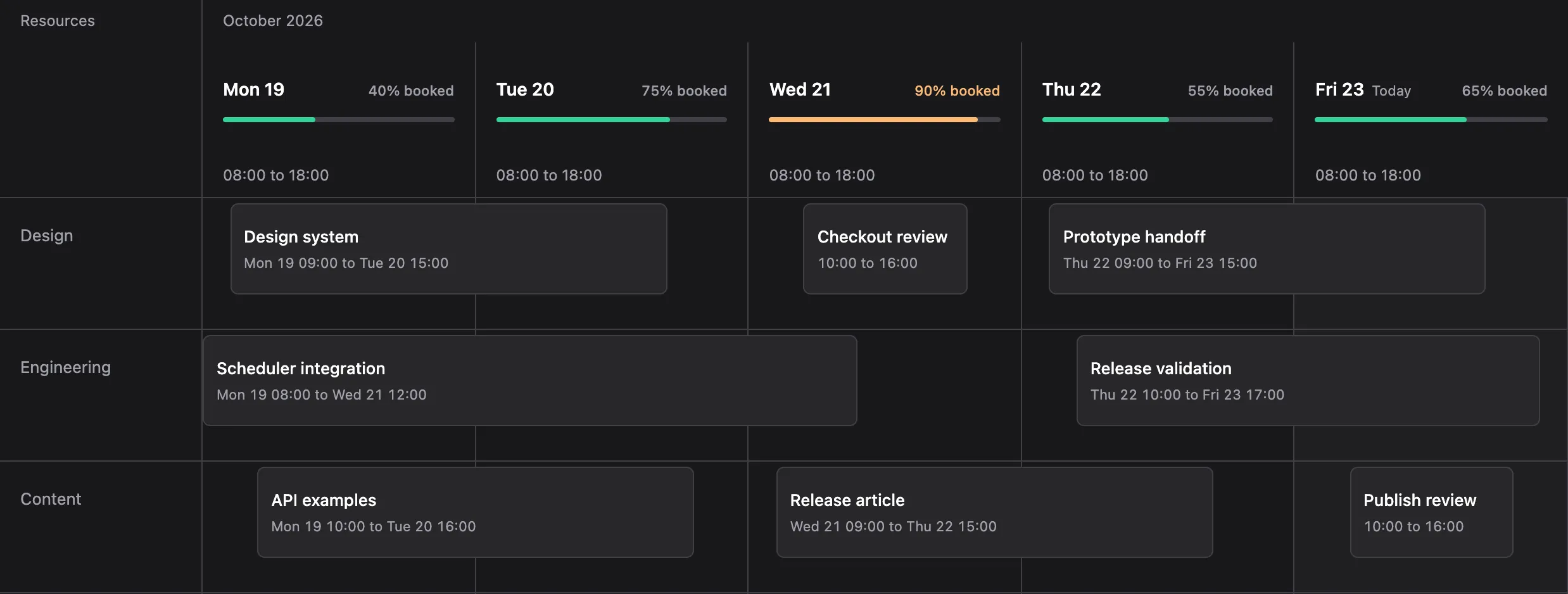
Open in StackBlitz (React version).
The percentages are sample inputs, independent of the bookings. The example uses
the device time zone, five days in resourceTimelineWeek, and one 600-minute
slot per day between 08:00 and 18:00. Only the header replacement is shown
below.
The three versions share these helpers in scheduler-planning.ts. A cell
spanning 23 to 25 hours gets a daily capacity value. The other cells get their
month label or a 24-hour time range:
export function capacityFor(start?: Date, end?: Date) {
if (!start || !end) return undefined;
const hours = (end.getTime() - start.getTime()) / 3600000;
if (hours < 23 || hours > 25) return undefined;
return [0, 40, 75, 90, 55, 65, 0][start.getDay()];
}
export function planningDay(date?: Date) {
return date?.toLocaleDateString('en-GB', { weekday: 'short', day: 'numeric' });
}
export function planningSlotLabel(start?: Date, end?: Date, label?: string) {
if (!start || !end || end.getTime() - start.getTime() >= 23 * 3600000) return label;
const format = new Intl.DateTimeFormat('en-GB', { hour: '2-digit', minute: '2-digit' });
return `${format.format(start)} to ${format.format(end)}`;
}
export function planningToday(date?: Date) {
return date?.toDateString() === new Date().toDateString();
}In Vue, replace the PlanningHeader.vue above with this version:
<script setup lang="ts">
import { computed } from 'vue';
import type { SchedulerTimelineHeaderCellPayload } from '@primeui/vue-scheduler';
import { capacityFor, planningDay, planningToday, planningSlotLabel } from './scheduler-planning';
const props = defineProps<Partial<SchedulerTimelineHeaderCellPayload>>();
const booked = computed(() => capacityFor(props.startDate, props.endDate));
</script>
<template>
<div class="planning-header" :class="{ 'is-slot': booked === undefined }" :data-high-load="booked !== undefined && booked > 85 ? '' : undefined">
<div class="planning-label">
<span class="planning-day">
<strong>{{ booked === undefined ? planningSlotLabel(props.startDate, props.endDate, props.label) : planningDay(props.startDate) }}</strong>
<span v-if="booked !== undefined && planningToday(props.startDate)" class="planning-today">Today</span>
</span>
<small v-if="booked !== undefined">{{ booked }}% booked</small>
</div>
<div v-if="booked !== undefined" class="capacity" aria-hidden="true"><span :style="{ width: `${booked}%` }" /></div>
</div>
</template>In React, the child reads the cell from useSchedulerTimelineHeaderCellContext:
import { Scheduler, useSchedulerTimelineHeaderCellContext } from '@primeui/react-scheduler';
import { capacityFor, planningDay, planningToday, planningSlotLabel } from './scheduler-planning';
function PlanningHeader() {
const { startDate, endDate, label } = useSchedulerTimelineHeaderCellContext();
const booked = capacityFor(startDate, endDate);
return (
<div className={`planning-header${booked === undefined ? ' is-slot' : ''}`} data-high-load={booked !== undefined && booked > 85 ? '' : undefined}>
<div className="planning-label">
<span className="planning-day">
<strong>{booked === undefined ? planningSlotLabel(startDate, endDate, label) : planningDay(startDate)}</strong>
{booked !== undefined && planningToday(startDate) && <span className="planning-today">Today</span>}
</span>
{booked !== undefined && <small>{booked}% booked</small>}
</div>
{booked !== undefined && <div className="capacity" aria-hidden="true"><span style={{ width: `${booked}%` }} /></div>}
</div>
);
}Place the replacement inside the root’s Scheduler.Content:
<Scheduler.TimelineHeaderCell>
    <PlanningHeader />
</Scheduler.TimelineHeaderCell>In Angular, add SchedulerTimelineHeaderCell and
SchedulerTimelineHeaderCellDef to the existing component’s imports. Both
come from @primeui/angular-scheduler. Import the same helpers from
./scheduler-planning and expose them on the component:
readonly capacityFor = capacityFor;
readonly planningDay = planningDay;
readonly planningToday = planningToday;
readonly planningSlotLabel = planningSlotLabel;
The definition goes inside p-scheduler-content:
<p-scheduler-timeline-header-cell *pSchedulerTimelineHeaderCellDef="let context">
    @let booked = capacityFor(context.startDate, context.endDate);
    <div class="planning-header" [class.is-slot]="booked === undefined" [attr.data-high-load]="booked !== undefined && booked > 85 ? '' : null">
        <div class="planning-label">
            <span class="planning-day">
                <strong>{{ booked === undefined ? planningSlotLabel(context.startDate, context.endDate, context.label) : planningDay(context.startDate) }}</strong>
                @if (booked !== undefined && planningToday(context.startDate)) { <span class="planning-today">Today</span> }
            </span>
            @if (booked !== undefined) { <small>{{ booked }}% booked</small> }
        </div>
        @if (booked !== undefined) {
            <div class="capacity" aria-hidden="true"><span [style.width.%]="booked"></span></div>
        }
    </div>
</p-scheduler-timeline-header-cell>
All three use the same CSS, loaded after the Scheduler styles. Wrap the
Scheduler in .planning-example so the warning token has a common scope. The
header owns its height and padding, and the track stays inside the cell:
.planning-example, .planning-example * { box-sizing: border-box; }
.planning-example { --planning-warning: light-dark(var(--p-orange-700), var(--p-orange-300)); }
.planning-header { display: flex; flex-direction: column; justify-content: center; gap: 12px; width: 100%; height: 100%; min-height: 88px; padding: 16px; background: var(--p-content-background); color: var(--p-text-color); }
.planning-label { display: flex; align-items: baseline; justify-content: space-between; gap: 10px; }
.planning-day { display: inline-flex; align-items: baseline; gap: 6px; }
.planning-label strong { font-size: 14px; font-weight: 600; white-space: nowrap; }
.planning-label small, .planning-today { color: var(--p-text-muted-color); font-size: 11px; font-variant-numeric: tabular-nums; white-space: nowrap; }
.planning-today { font-weight: 400; }
.capacity { height: 4px; overflow: clip; border-radius: 999px; background: light-dark(var(--p-surface-200), var(--p-surface-700)); }
.capacity > span { display: block; height: 100%; border-radius: inherit; background: var(--p-primary-color); }
.planning-header[data-high-load] .capacity > span { background: var(--planning-warning); }
.planning-header[data-high-load] small { color: var(--planning-warning); }
.planning-header.is-slot { min-height: 34px; padding: 8px 16px; }
.planning-header.is-slot strong { color: var(--p-text-muted-color); font-size: 12px; font-weight: 400; }
Narrow timelines
Vue 1.1.2, React 1.0.1 and Angular 1.0.2 raised every timelineSlotWidth below
96px to 96px. A seven day week with hourly slots and a 22px slot width grew from
3,696px to 16,128px.
A timelineSlotWidth of 20 or more is now used as given, on day, week and month
timelines. A smaller value uses 20px, and without the prop slots are 112px wide.
Headers, events and the scroll track share the same slot geometry.
<Scheduler.Root view="resourceTimelineWeek" :timeline-slot-width="22">
    <!-- ... -->
</Scheduler.Root>
Editing works at these widths:
- A narrow event keeps a drag target in the middle, between its two resize edges. The resize areas scale with the event width, and events 48px or wider keep the 12px edges.
- In Vue and React, the resize preview of a short event has the same width as the event after the drop.
- In Vue, the drag preview keeps the width of the event instead of growing to 30px.
- In React, dragging a short event places it at the intended time wherever you grab its card, and the event keeps its duration even when the card is wider than the time it spans.
The built-in event content adapts to the size of the bar. Title and time each stay on one line with an ellipsis. When the bar is too narrow or too short, the time is hidden first, then the title. The accessible label keeps the full text, and custom event templates are not changed.
On day and month timelines, event cards keep a 30px minimum width so short
events stay clickable, even when the slot is narrower. Set
--p-scheduler-timeline-event-min-width to change it. Week timelines draw
events at their exact length.
The preset UI parts that draw the event content, including
SchedulerTimelineEventUI and event.css, come from the CLI. Copy them again
to get the new content behavior in a project.
Display time zone
The timeline views now work in the display zone when the device time zone
differs from timezone or displayTimezone. On a device in New York, with a
Scheduler set to Istanbul time and a 35 day hourly window starting on 1 November
2026:
| Check | Before | Now |
|---|---|---|
| First slot label | 07:00 | 00:00 |
| Hourly slots in the window | 841 | 840 |
| Drag an event by one 96px column | moves 2 hours | moves 1 hour |
| Resize 10:00 to 11:00 into 10:00 to 12:00, business hours 08 to 18 | rejected | accepted |
The rest of the timeline follows the same zone:
- The toolbar title, the live region and the today button use the selected day in the display zone. On a device in Tokyo showing Istanbul time, the title could name a different day than the grid.
- Today and weekend styling follow the display calendar.
- Days with a daylight saving change keep their 23 or 25 hours.
- The offset between two zones is computed from the zone itself, so a device that changes to or from daylight saving time no longer adds an hour.
The Date values of timed cells are real instants, so a handler formats them in
the display zone rather than with the device’s clock:
<Scheduler.Root view="resourceTimelineWeek" display-timezone="Europe/Istanbul" @date-click="onDateClick">
    <!-- ... -->
</Scheduler.Root>
const timeInIstanbul = new Intl.DateTimeFormat('en-GB', {
timeZone: 'Europe/Istanbul',
hour: '2-digit',
minute: '2-digit'
});
function onDateClick({ date }) {
console.log(timeInIstanbul.format(date)); // 00:00 for the first slot
}date.getHours() returns the hour on the device, which is 17:00 for the same
slot on the previous day in New York. Day and month cells, and the dates passed
to the root, are calendar dates and are not affected.
Right-to-left timelines
In a right-to-left page, timeline bars used their time offset as a physical
left. A 10:00 to 11:00 event landed three hourly columns away from its slot,
and dragging and resizing ran the wrong way. Bars and previews now position
themselves with logical properties:
<!-- before -->
<div class="p-scheduler-timeline-event" style="left: 288px; width: 96px"></div>

<!-- now -->
<div class="p-scheduler-timeline-event" style="inset-inline-start: 288px; width: 96px"></div>
Dragging toward the left moves an event later, the left edge resizes the end and
the right edge the start, and a rejected edit puts the bar back. In Vue, the
style slot prop of the low-level Timeline.Event part carries
insetInlineStart instead of left.
Short events on week timelines
On timelineWeek and resourceTimelineWeek, events had a minimum width of 30px
in the PrimeOne theme, so an event of a few minutes was drawn wider than its
time and ran into the next one. Events on these views now render at their real
length.
Month timeline edits
Moving an event to another day in a month timeline now keeps its clock time and duration, also across a daylight saving change.
In Vue and Angular, resizing an event across days keeps the clock time of the edge you drag and leaves the other edge unchanged. Resizing within the same day keeps the original dates.
Resource groups
Parent resources have expand and collapse controls again in the PrimeOne and Tailwind presets, and child rows are indented consistently. Click, Enter and Space each toggle a group once. The controls are part of the preset resource row, which comes from the CLI, so copy that part again to get them.
Other fixes
All three:
- Events without an
endstay visible when their fallback duration crosses the start of a filtered timeline window. - Tailwind toolbar parts match PrimeOne semantic colors in light and dark mode.
Vue and Angular:
- Timeline edits use
timelineSnapDuration, withsnapDurationas the fallback. - Drag and resize previews follow scrolling even when the pointer stays still, and dropped or resized events use the final scroll position.
Vue and React:
- Timeline Year highlights the current month in the display time zone.
Vue:
-
The header now scrolls with the body in the same container, so header and body cells stay aligned while scrolling.
-
Replacing the bound date with a new
Dateupdates the timeline without a remount. -
event-resize-startandevent-resizeare emitted on timelines, with theview. Onlyevent-resize-stopreached the app before:<Scheduler.Root @event-resize-start="onStart" @event-resize="onMove" @event-resize-stop="onStop"> <!-- ... --> </Scheduler.Root>onMovereceivesstartDeltaandendDeltawhile the edge moves. -
Selecting a timed cell with Enter or Space reports the cell’s start and end times with
allDay: false. -
On a device west of UTC, month view pointer targets hit the day under the pointer instead of the day before.
-
Scheduler and timeline view imports pass strict TypeScript declaration checks, also with
skipLibCheck: false. -
In day and week time grids, dragging or resizing an event by touch calls the drop or resize-stop callback and the event change callback once.
-
In day and week time grids, resizing an event calls the resize-start callback once before the resize completes.
-
Timeline grids carry grid and row roles, with row and column indexes for virtualized cells.
React:
- The timeline view shows the now indicator.
- Drag progress callbacks report the same change as the preview and the drop. In right-to-left pages, or with narrow slots, they reported a different amount.
- Selecting a timed cell reports
allDay: false, and month view pointer targets on devices west of UTC hit the right day. - Virtual scrolling now waits for the requested keyboard target to mount before moving focus. Ordinary scrolling still moves focus to the nearest visible cell when the focused cell unmounts.
- Resizing an event by touch calls the resize-start callback once.
Angular:
- The resource timeline shows the now indicator.
- Timeline grids carry grid and row roles, with row and column indexes for virtualized cells.
- The package no longer ships source maps, which cuts the unpacked size by about half.
Upgrading
From Vue 1.1.1, React 1.0.0 or Angular 1.0.1, install the versions above. The packages need only a version bump, and the preset UI parts need a new copy from the CLI, as noted below. These changes can alter an existing timeline:
- An app that already passes
numberOfDaysto a week timeline now gets that window and that navigation step, instead of seven days. - Custom timeline header content no longer inherits the label’s padding and alignment. Add padding to the custom content where it needs it.
- If you already run Vue 1.1.2, React 1.0.1 or Angular 1.0.2, a
timelineSlotWidthbelow 96, which those versions rendered at 96, is used as given again, down to 20. Timelines that relied on the wider slots become narrower. - Angular timeline edits now honor
timelineSnapDuration. Vue now falls back tosnapDurationwhentimelineSnapDurationis unset, so existing snap intervals can change. - The
Datevalues of timed timeline cells, in header and cell payloads and indateClickanddateSelect, are real instants. Format them with the display time zone.getHours()on such a value returns the device’s hour, which differs from the display when the zones differ. Day and month cells and the root date inputs stay calendar dates. - Timeline event bars set
inset-inline-startinstead ofleft. Code or CSS that readsstyle.lefton a bar, and the VueTimeline.Eventslot propstyle, use the new property. - Short events on week timelines are narrower.
- The narrow event content and the resource group controls are in the preset UI parts. Copy those parts again with the CLI to get them.
Setup, views and the API are documented on vue.primeuipro.dev, react.primeuipro.dev and angular.primeuipro.dev.