PrimeOne is the Figma UI kit for the Prime components. It is designed on the Aura theme and keeps its design tokens in native Figma variables, and a Figma plugin syncs those tokens to theme code. You can find the kit and its preview files on the PrimeOne UI Kit page.
PrimeOne 5.0.0 is out, and it is a major revision of the token infrastructure. Most of this post is about the scale system, because that change touches almost every component in the file. After that come the new components, slot support in Figma, the deprecations and a set of semantic token changes.
Why the scale system changed
The scale primitives are the size variables that every spacing, padding,
font-size and dimension token in the kit is built from. Scale/1 is one base
unit, Scale/0-5 is half a unit, Scale/2 is two units, and so on.
The previous base unit was 14px. Multiplying 14 by fractional steps kept
producing fractional pixels: Scale/0-5 was 7px, Scale/0-875 was 12.25px,
Scale/1-125 was 15.75px. Values that don’t sit on the pixel grid can render
with blurry edges or uneven gaps, and they are hard to remember when you are
laying out a screen.
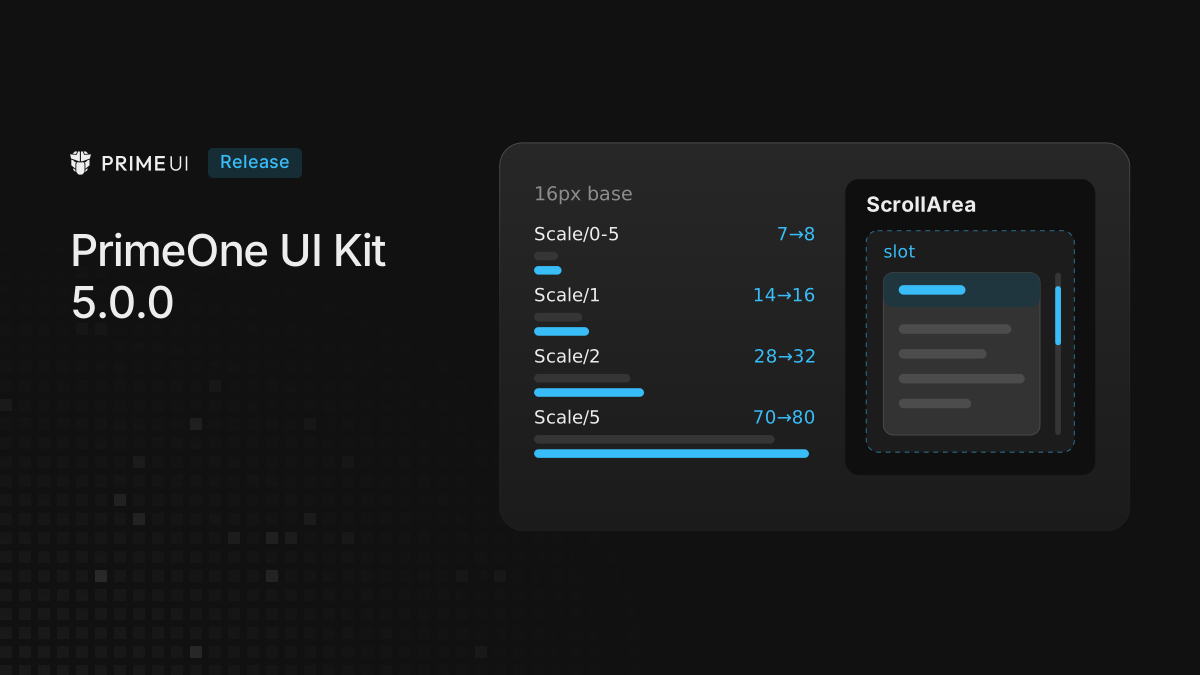
In 5.0.0 the base unit is 16px. The steps keep their multipliers, and the results are now whole numbers:
| Token | Old (14px base) | New (16px base) |
|---|---|---|
Scale/0-5 |
7px | 8px |
Scale/0-875 |
12.25px | 14px |
Scale/1 |
14px | 16px |
Scale/2 |
28px | 32px |
Scale/5 |
70px | 80px |
Negative scales follow the same rule: Scale/neg-1 is now -16px instead of
-14px.
Added and removed tokens
Six primitives are new and fill steps the new scale did not have:
Scale/1-375(22px)Scale/2-625(42px)Scale/3-5(56px)Scale/4-5(72px)Scale/16(256px)Scale/22(352px)
One primitive is gone: Scale/1-143. It existed only to produce 16px on the old
base (14 × 1.143). On the new base Scale/1 is exactly 16px, so the extra step
has no purpose. If anything in your own file is bound to Scale/1-143, rebind
it to Scale/1.
Impact on components
Every size token in a component references a scale primitive, so changing the base changes the resolved pixel value of all of them. Padding, spacing, font-size, icon-size and dimension values were updated across more than 50 components.
Two things happen to a component token:
- It keeps its step. The value grows with the base. A token on
Scale/1goes from 14px to 16px. - It moves to a new step. Tokens that sat on a fractional value were moved
to a nearby whole one. A padding that used
Scale/1-125(15.75px) now usesScale/1(16px): practically the same size on screen, but on the pixel grid.
The affected components, grouped by type:
| Group | Components |
|---|---|
| Form | Checkbox, DatePicker, FloatLabel, IftaLabel, InputGroup, InputNumber, ListBox, MultiSelect, Password, RadioButton, Select, ToggleButton, ToggleSwitch, TreeSelect |
| Button | Button |
| Data | DataTable, OrderList, OrganizationChart, Paginator, Picklist, Timeline, Tree, TreeTable, VirtualScroller |
| Panel | Accordion, Card, Divider, Fieldset, Panel, Stepper, Tabs, Toolbar |
| Overlay | Dialog, Drawer, Popover, Tooltip |
| File | FileUpload |
| Menu | Dock, MegaMenu, MenuBar, TieredMenu |
| Messages | Message, Toast |
| Media | Galleria, Image |
| Misc | Avatar, Badge, Chip, MeterGroup, ProgressBar, Tag, Terminal |
What this means for your own designs
Component instances pick up the new values when you accept the library update in
Figma. Your own frames follow the same rule as the components: any layer bound
to a scale primitive keeps the variable and resolves to the new value, so a card
with Scale/1 padding goes from 14px to 16px. Only hardcoded pixel values stay
where they are.
That means the update can shift layouts you built yourself, not just the kit components. Before accepting it in a production file, try it on a copy and check the screens where your own frames sit next to kit components.
New components
8 new components have been added. Some replace and rename an existing component, the rest are entirely new.
Sidebar
A layout component for application navigation, with collapsible panels and composable menu structures. Its subcomponents (menu-button, menu-action, group-action) expose their icon as an instance swap property, so you choose a different icon from the kit’s icon set without detaching anything. See the Sidebar documentation in PrimeNG.
InputColor
Replaces ColorPicker. It does the same job, picking a color, under a name and property set that match the other input components. See the InputColor documentation in PrimeVue.
InputPassword
Replaces Password. In PrimeReact it covers password entry with a strength meter and a toggle that shows or hides the value. See the InputPassword documentation in PrimeReact.
InputTags
A multi-value input that shows each entry as a tag, for fields such as labels, recipients or keywords. It is still a work in progress in this release, so its variants and properties may change before 5.0.0. See the InputTags documentation in PrimeNG.
ScrollArea
Replaces ScrollPanel. It wraps any content in a themed scrollbar, and it is one
of the first two components in the kit with a slot: the Viewport Content
property is a slot, so you place any design straight into the scrollable area.
With the old ScrollPanel, putting your own content inside meant detaching the component and editing it by hand, which cut its link to the library. With ScrollArea you drag the design into the slot, the component stays an instance, and later library updates still reach it. See the ScrollArea documentation in PrimeReact.
CommandMenu
A command palette: a searchable list of actions, the kind of menu an app usually opens with a keyboard shortcut. See the CommandMenu documentation in PrimeVue.
Compare
Replaces ImageCompare. It shows two items side by side with a slider between
them, and it is the second component with a slot. The slot.asset property is a
slot, so you drop in whatever you want to compare. ImageCompare was tied to an
image fill and could only compare pictures. Compare accepts any layer, such as
two versions of a screen or a before and after of a chart. See the
Compare documentation in PrimeVue.
Gallery
Replaces both Galleria and Image. The two components overlapped: Galleria showed a collection of images, Image showed a single image with a preview. Gallery covers both cases in one component. See the Gallery documentation in PrimeReact.
Slot support in Figma
A slot is a component property that accepts any content. It is different from instance swap: with instance swap you choose from a set of predefined components, while a slot accepts any frame, group or layer you place into it.
This solves a common problem with UI kits. Components that hold arbitrary content, such as a scroll container or a comparison view, used to force a choice between keeping the placeholder content and detaching the instance. A detached instance becomes a plain frame, so later changes to the component itself (new layers, variants, properties) never reach it and have to be redone by hand. With a slot the content is yours and the component around it stays connected to the library.
ScrollArea and Compare are the first two components in the kit to use slots. More components will adopt the pattern in upcoming releases.
Deprecated components
8 components have been marked as deprecated. Use the replacement in new designs, and move existing screens over when you next work on them:
| Deprecated | Replacement |
|---|---|
ColorPicker |
InputColor |
MultiSelect |
Select |
Password |
InputPassword |
ScrollPanel |
ScrollArea |
PanelMenu |
Menu |
Galleria |
Gallery |
Image |
Gallery |
ImageCompare |
Compare |
Most rows are the renames and merges described above. Two need a word of explanation:
- MultiSelect to Select: Select handles both single and multiple selection, so a separate component for the multiple case is no longer needed. See the multiple selection example in PrimeReact.
- PanelMenu to Menu: Menu supports nested submenus, which covers what PanelMenu did. See the Menu documentation in PrimeReact.
The list lines up with PrimeReact, which no longer ships any of the deprecated
components. It also shows a naming rule: input-type components use the Input*
prefix, so ColorPicker becomes InputColor and Password becomes InputPassword,
and the name of an input component is easier to guess.
Semantic color scheme
Two areas changed.
Focus colors
When a form field with a float label receives focus, the label now uses the
brand color: primary/600 in Light and primary/color in Dark. It used
to be surface/500, a neutral gray from the surface palette.
Dark mode highlight and button tokens
Highlight colors in dark mode were hardcoded RGBA values. If you changed the primary color, the highlights stayed on the old color until you edited each value by hand. They now use composed tokens, which take a primitive color and apply an opacity to it:
highlight/background(Dark): hardcoded RGBA →COMPOSED(primary/400, 16%), which isprimary/400at 16% opacityhighlight/focus/background(Dark): hardcoded RGBA →COMPOSED(primary/400, 24%)
The Button component got the same treatment. In dark mode, every severity of
the Outlined and Text variants (Primary, Success, Info, Warn, Help, Danger)
moved from hardcoded values to composed tokens. For example, a Success button
now uses green/400 at 4% opacity on hover and at 16% on active.
Change a primitive color now, and every highlight and button state built on it follows in dark mode without manual edits.
Moving to semantic token references
Some components now reference shared semantic tokens instead of keeping their
own local values. The item/padding values of ContextMenu are now bound to
the Semantic Common/navigation/item/padding tokens, the same tokens the other
navigation components use. Changing that padding in one place now updates every
navigation component together, and ContextMenu no longer drifts out of step.
Summary
PrimeOne 5.0.0 changes little in how the kit looks and a lot in how it is built:
- The scale moves to a 16px base with whole-number values. Component tokens either keep their step and grow with the base, or move to a nearby whole step.
- Your own frames bound to scale primitives change too, so try the update on a copy first.
- Slots start with ScrollArea and Compare, and remove the need to detach components that hold your own content.
- Every deprecated component has a named replacement that matches PrimeReact.
- Dark mode highlight and button colors now derive from primitives instead of hardcoded values.
The full list of changes is in the changelog frame of the PrimeOne UI Kit Figma file.