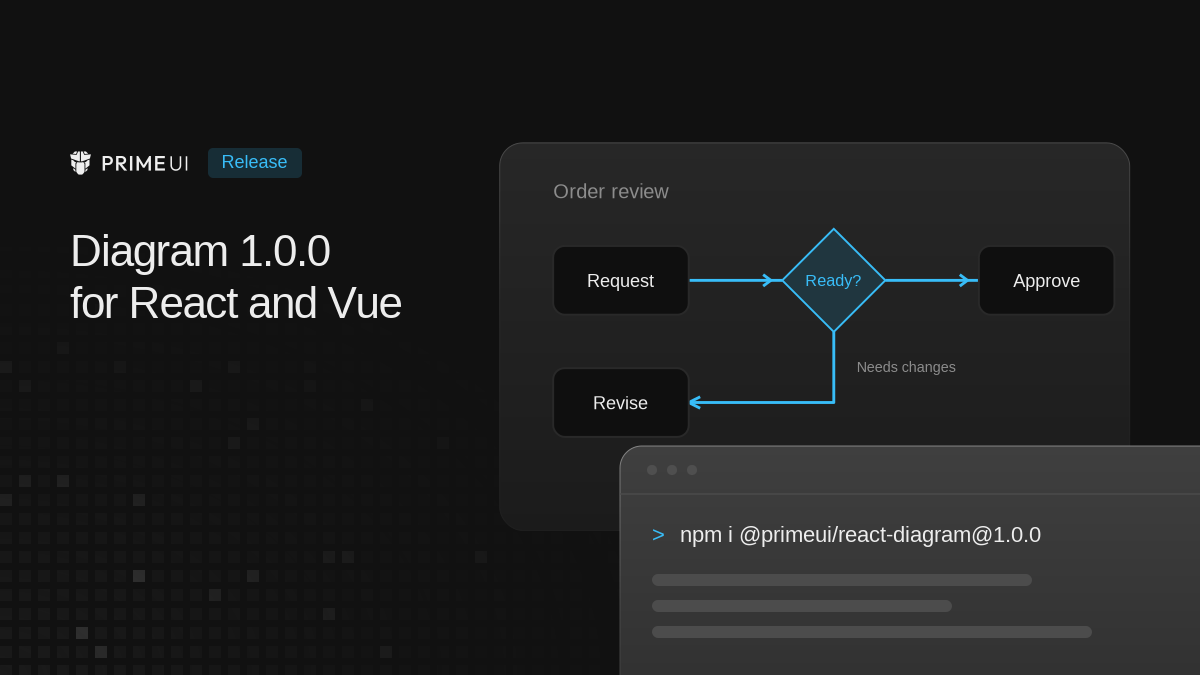
Enterprise diagram editors need more than shapes and connectors. An order workflow needs valid relationships, edits that follow application permissions, and a saved document that can move between tools.
Diagram 1.0.0 brings those capabilities to PrimeUI Pro for React and Vue. The release includes:
- A typed document model with validation and atomic transactions.
- Managed editing or application approval before a change becomes committed state.
- Pages, layers, swimlanes, and automatic layout.
- BPMN, UML class, ER, activity, and sequence notation profiles.
- Native JSON persistence and BPMN XML interchange.
- Rendered SVG, PNG, JPEG, and print output.
A document model beneath the React and Vue components
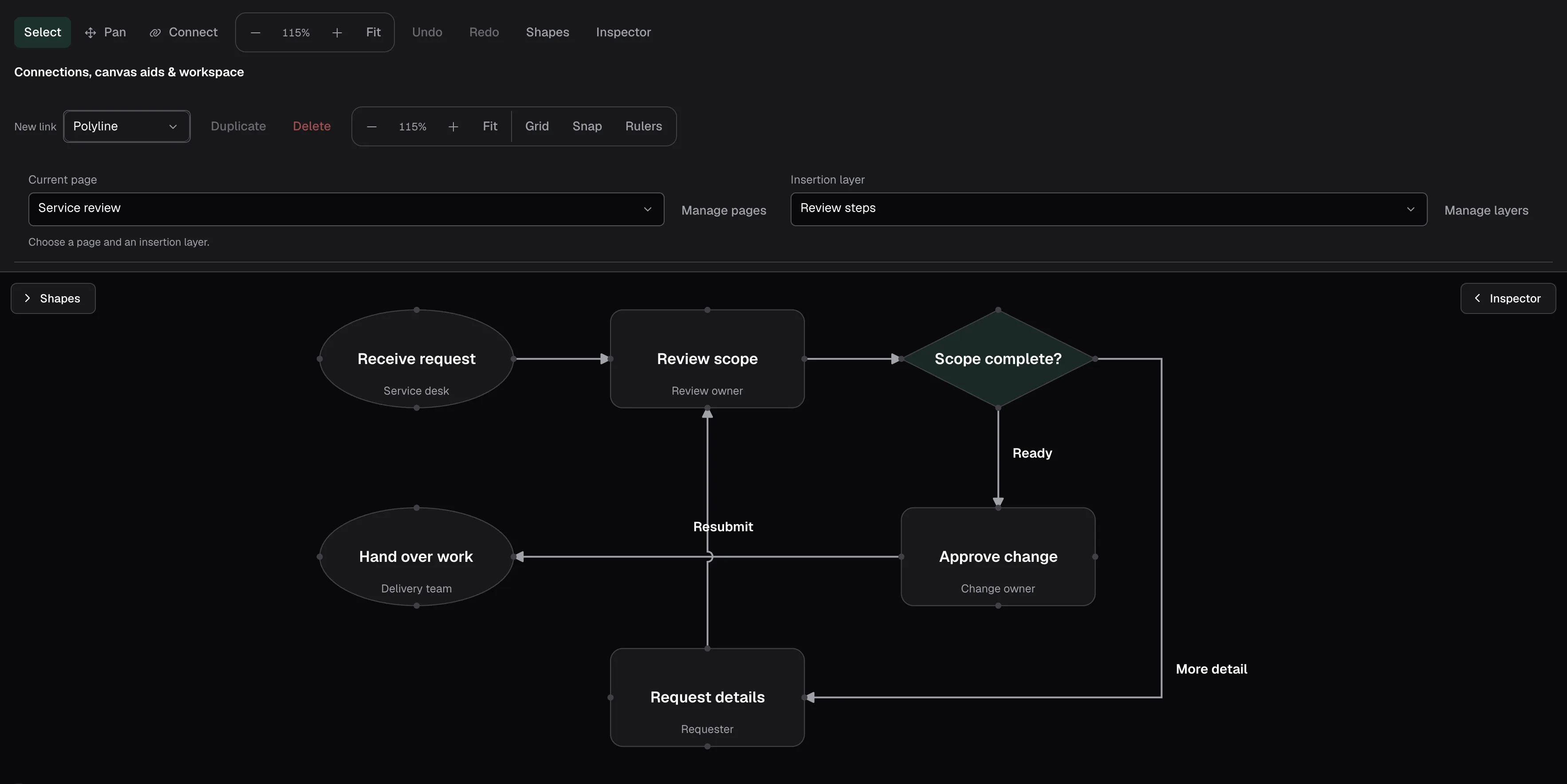
The saved DiagramModel contains JSON-safe pages, layers, nodes, and
connectors. React components or Vue slots render the node content. The workflow
editor adds copied toolbar, palette, and inspector parts around that canvas.
A smaller editor starts with a model and a viewport. Save this as model.ts in
the React application. The following examples reuse it.
import type { DiagramModel } from '@primeui/react-diagram';

export const model: DiagramModel = {
    schemaVersion: 1,
    id: 'review-workflow',
    pages: [{ id: 'page', name: 'Review' }],
    layers: [{ id: 'steps', pageId: 'page', name: 'Steps' }],
    nodes: [
        {
            id: 'review',
            type: 'task',
            pageId: 'page',
            layerId: 'steps',
            bounds: { x: 40, y: 40, width: 180, height: 100 },
            rotation: 0,
            ports: [],
            labels: [],
            data: { title: 'Review order' }
        }
    ],
    connectors: []
};
For Vue, save the same model with its type imported from the Vue wrapper:
import type { DiagramModel } from '@primeui/vue-diagram';React, ReviewEditor.tsx:
'use client';

import { Diagram, useDiagramNodeContext } from '@primeui/react-diagram';
import { model } from './model';

function TaskBody() {
    const { node } = useDiagramNodeContext();
    return <strong>{String(node.data?.['title'] ?? node.id)}</strong>;
}

export const taskDefinition = <Diagram.Node type="task"><TaskBody /></Diagram.Node>;

export function ReviewEditor() {
    return (
        <Diagram.Root value={model} pageId="page">
            {taskDefinition}
            <Diagram.Viewport label="Order review" autoFit style={{ height: '24rem' }} />
        </Diagram.Root>
    );
}
The node definition stays stable across parent renders. TaskBody reads the
current node through its context.
Vue, ReviewEditor.vue:
<script setup lang="ts">
import { Diagram } from '@primeui/vue-diagram';
import { model } from './model';
</script>

<template>
    <Diagram.Root :value="model" page-id="page">
        <Diagram.Node v-slot="{ node }" type="task">
            <strong>{{ node.data?.['title'] ?? node.id }}</strong>
        </Diagram.Node>
        <Diagram.Viewport label="Order review" auto-fit style="height: 24rem" />
    </Diagram.Root>
</template>
value creates a managed store that owns the document and Undo history. Each
root keeps its own selection, tools, pan, and zoom, even when roots share a
store. Bind exactly one source, value or an application-owned store. A new
value reference reloads the document with fresh history. React’s onCommit
and Vue’s @commit report completed edits; do not feed those snapshots back
into value.
The editor shell is optional. PrimeOne and Tailwind UI parts are copied into your project, so you can change the panels and node content independently. The architecture guides for React and Vue explain that composition and the store’s lifecycle.
The application decides which edits become state
Controlled mode turns an edit into a proposal. The committed snapshot stays unchanged until the application accepts it. That gives a permissions check or an approval service a place to decide whether a move becomes saved state.

The approval protocol is the same in both wrappers. Start approval.ts with the
import for your application, then add the shared factory below.
React:
import { createDiagramStore, type DiagramModel, type DiagramProposal } from '@primeui/react-diagram';Vue:
import { createDiagramStore, type DiagramModel, type DiagramProposal } from '@primeui/vue-diagram';Shared factory:
export function createApproval(model: DiagramModel) {
    const created = createDiagramStore(model, { mode: 'controlled' });
    if (!created.ok) throw new Error(JSON.stringify(created.diagnostics));
    const store = created.value;
    const unsubscribe = store.subscribeProposals((proposal) => console.info(proposal));

    function decide(proposal: DiagramProposal, accepted: boolean) {
        return store.acknowledge(
            accepted
                ? {
                      transactionId: proposal.id,
                      status: 'accepted',
                      baseRevision: proposal.baseRevision,
                      revision: proposal.baseRevision + 1
                  }
                : {
                      transactionId: proposal.id,
                      status: 'rejected',
                      baseRevision: proposal.baseRevision
                  }
        );
    }

    return { store, decide, dispose: () => { unsubscribe(); store.dispose(); } };
}
Create one approval = createApproval(model) per editor owner. Replace the
managed root’s value with store={approval.store} in React or
:store="approval.store" in Vue. Your approval UI or service calls
approval.decide(proposal, accepted). The caller owns the store and calls
approval.dispose() after its borrowing roots detach. The controlled-state
guides for
React and
Vue cover
asynchronous approval and framework cleanup.
Acceptance uses the proposal’s exact ID and base revision. A stale response does not commit the candidate, and rejection leaves the document unchanged. Validation reports a code, path, and message for the failing record. Transactions are atomic, and a completed drag creates one Undo entry. Selection and pan stay outside document history.
BPMN from the palette to XML
BPMN authoring uses the same document, selection, and history as the generic canvas. Its palette supplies tasks, events, gateways, and other supported profiles. A task carries its process and scope, while a sequence flow carries its relationship semantics.
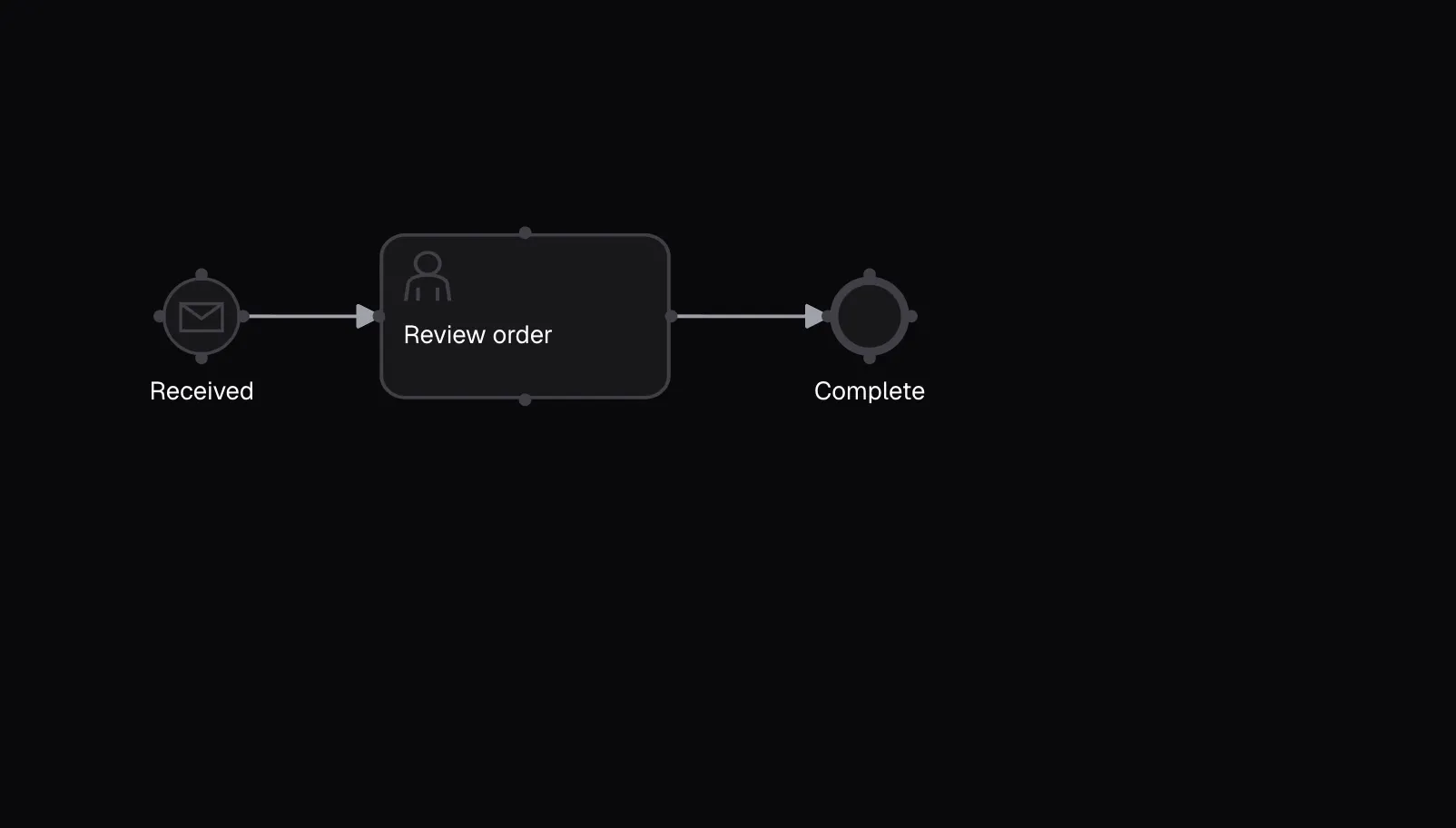
Install createDiagramBpmnModule() in the store’s notationModules. Register
createDiagramBpmnLibrary().symbols in a DiagramSymbolRegistry, then pass
that registry to the root’s symbols prop. Import the module and library from
your wrapper’s /bpmn entry and the registry from its root entry. The module
validates notation records and later edits. The palette and inspector submit
typed actions through those rules, including process ownership and flow scope.
Structurally valid unfinished diagrams can keep completeness warnings.
The BPMN basics demos for React and Vue contain the complete palette, store, and inspector setup. The resulting model can also be read or written as BPMN XML, with diagram geometry included.
This standalone helper checks an incoming document and returns XML for its parsed model. Both operations report diagnostics. Use the matching import, followed by the same function in a TypeScript module.
React:
import { readDiagramBpmnXml, writeDiagramBpmnXml } from '@primeui/react-diagram/bpmn-xml';Vue:
import { readDiagramBpmnXml, writeDiagramBpmnXml } from '@primeui/vue-diagram/bpmn-xml';Shared function:
export function inspectBpmn(xml: string) {
    const read = readDiagramBpmnXml(xml);
    console.info(read.diagnostics);
    if (!read.ok) return;
    const written = writeDiagramBpmnXml(read.model);
    console.info(written.diagnostics);
    if (written.ok) return written.xml;
}
For an editor import, DiagramBpmnXmlImportController previews the file and
accepts the replacement through the store’s editing policy. The BPMN XML guides
for React and
Vue describe that
review flow and the supported interchange profile.
Pages, swimlanes, and layout
Pages hold independent graphs. Layers control visibility and locking within a page. Groups and containers keep child coordinates local, so related content moves together. Swimlanes add pools, lanes, and optional phases to the same document and history.
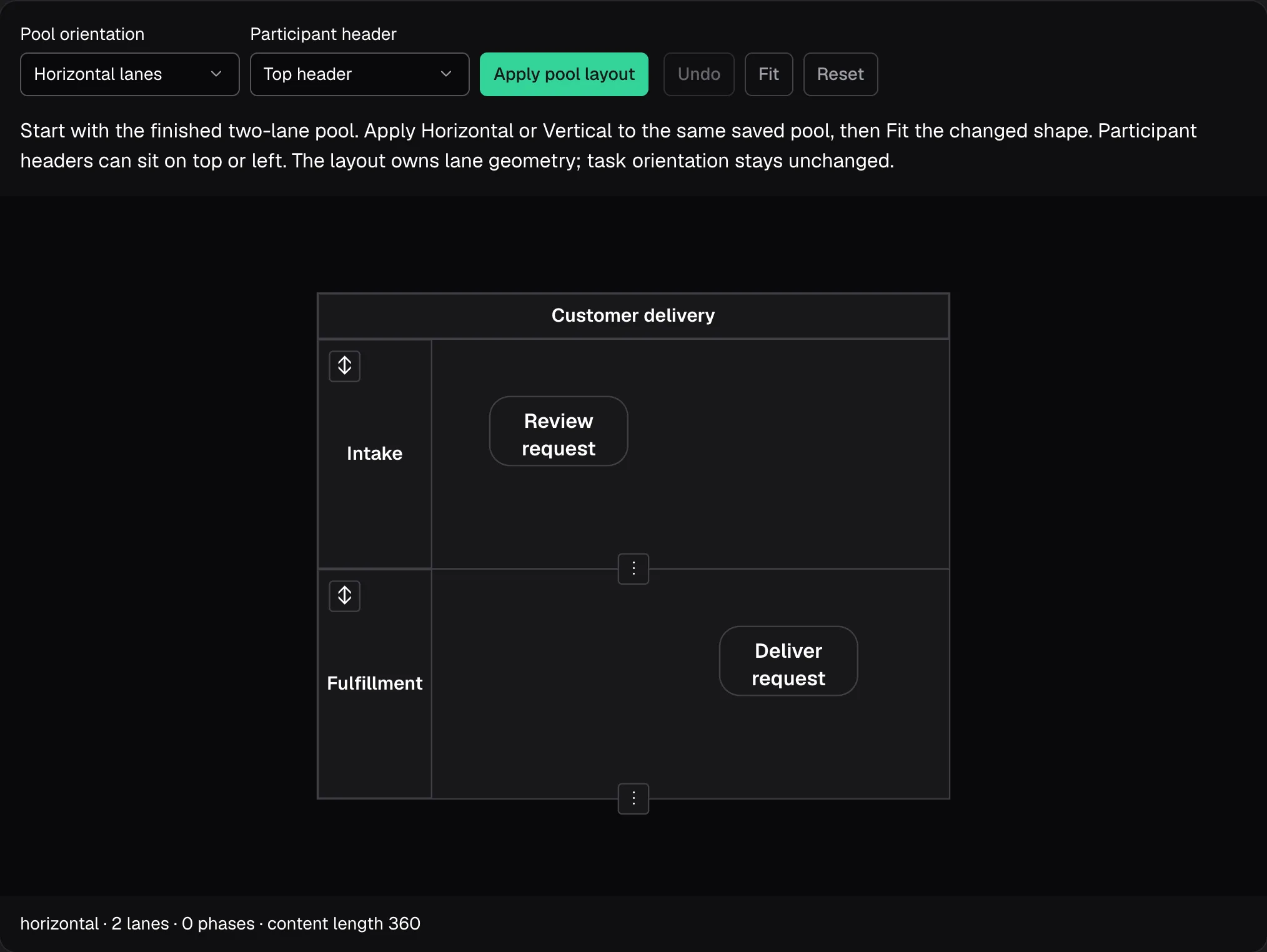
These components reuse model.ts and add an explicit layout action.
React, ArrangeEditor.tsx, reusing the stable definition from
ReviewEditor.tsx:
'use client';

import { Diagram } from '@primeui/react-diagram';
import { DiagramLayout } from '@primeui/react-diagram/layout';
import { model } from './model';
import { taskDefinition } from './ReviewEditor';

export function ArrangeEditor() {
    return (
        <Diagram.Root value={model} pageId="page">
            {taskDefinition}
            <DiagramLayout.Root>
                <DiagramLayout.Run>Arrange graph</DiagramLayout.Run>
                <Diagram.Viewport label="Review layout" style={{ height: '24rem' }} />
            </DiagramLayout.Root>
        </Diagram.Root>
    );
}
Vue, ArrangeEditor.vue:
<script setup lang="ts">
import { Diagram } from '@primeui/vue-diagram';
import { DiagramLayout } from '@primeui/vue-diagram/layout';
import { model } from './model';
</script>

<template>
    <Diagram.Root :value="model" page-id="page">
        <Diagram.Node v-slot="{ node }" type="task">
            <strong>{{ node.data?.['title'] ?? node.id }}</strong>
        </Diagram.Node>
        <DiagramLayout.Root>
            <DiagramLayout.Run>Arrange graph</DiagramLayout.Run>
            <Diagram.Viewport label="Review layout" style="height: 24rem" />
        </DiagramLayout.Root>
    </Diagram.Root>
</template>
Layout is an explicit edit. The default layered provider arranges directed graphs. Tree and force providers handle forests and networks. An accepted layout becomes one Undo action; connector routing is a separate operation.
The schema modeler combines ER entities, fields, and relationships in an editor with its own panels. Notation rules and document organization use the same store.
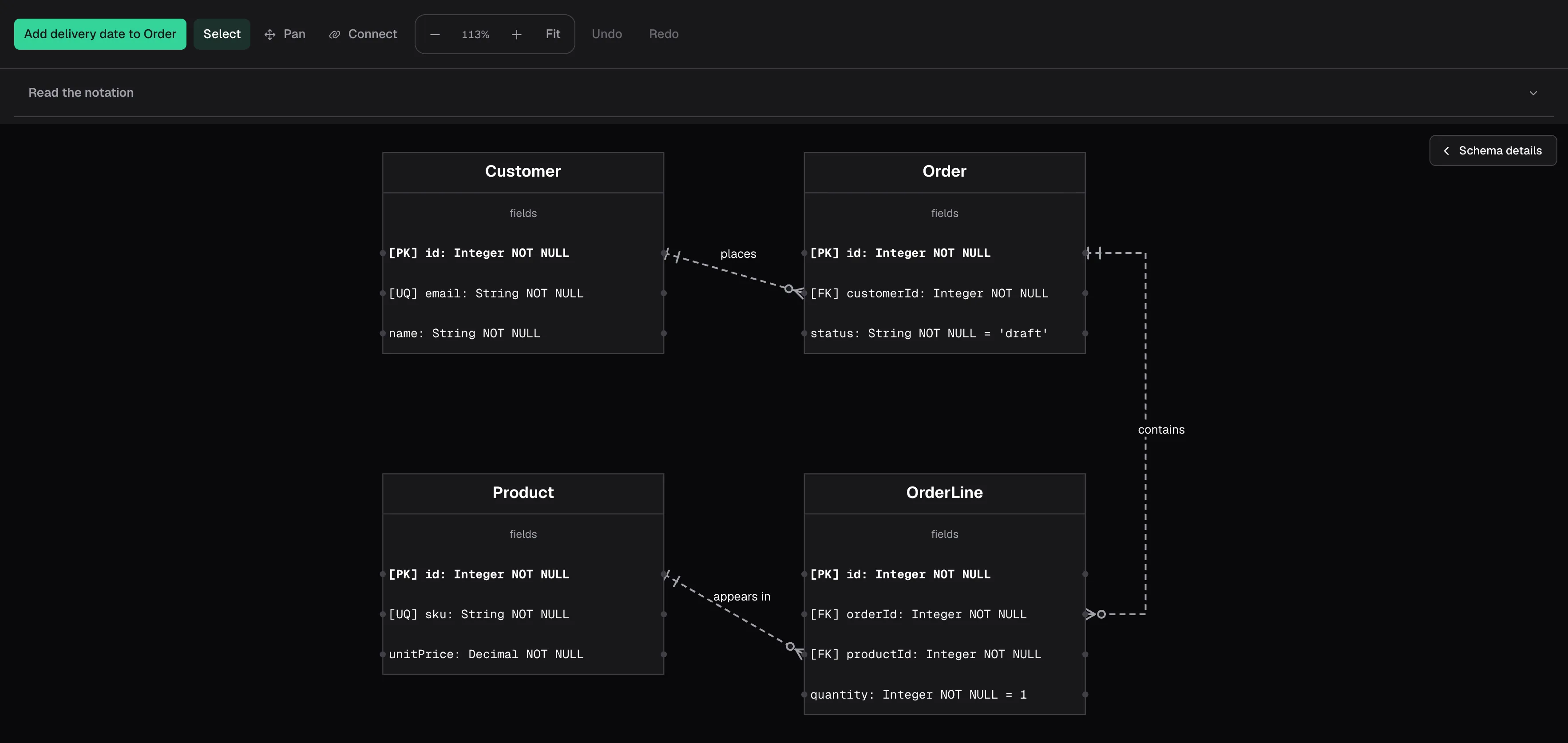
See pages and layers for React and Vue, swimlanes for React and Vue, and layouts for React and Vue.
Export the rendered diagram
Rendered export captures the viewport’s mounted HTML, CSS, images, and nested SVG. Editor controls stay outside the output. Native JSON persistence saves the document model and application data.
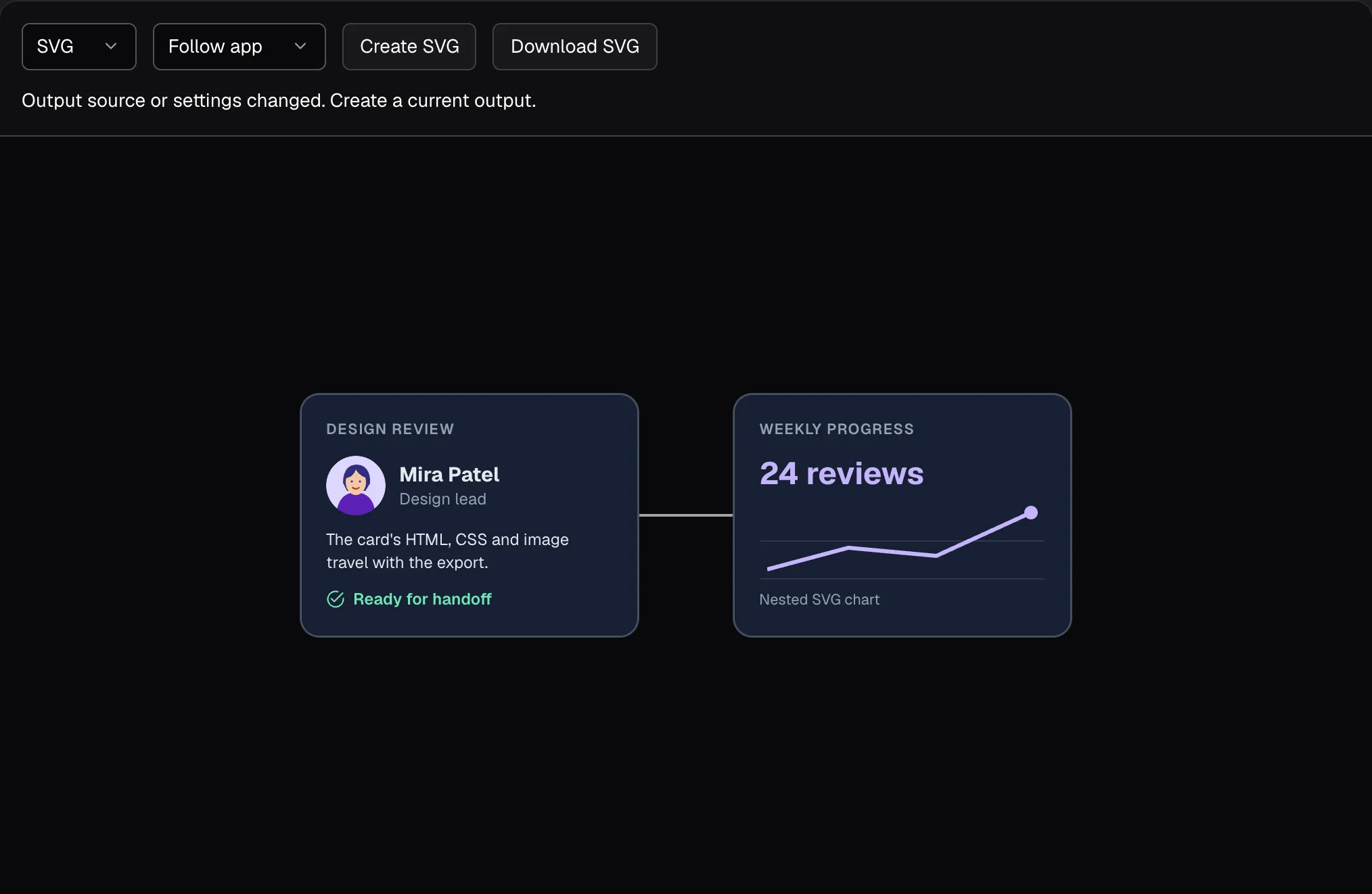
Call this helper from a button handler after the viewport and its application data have rendered. Pass the mounted viewport handle and the current store snapshot. A successful result contains one SVG document per exported page.
React, svg.ts:
import type { DiagramModel, DiagramViewportHandle } from '@primeui/react-diagram';
import { exportDiagramSvg } from '@primeui/react-diagram/export';

export async function svg(view: DiagramViewportHandle, snapshot: DiagramModel) {
    const result = await exportDiagramSvg(snapshot, { pageIds: ['page'] }, view.exportSource());
    if (!result.ok) throw new Error(JSON.stringify(result.diagnostics));
    return result.value;
}
Vue, svg.ts, waiting for pending Vue updates before capture:
import { nextTick } from 'vue';
import type { DiagramModel, DiagramViewportHandle } from '@primeui/vue-diagram';
import { exportDiagramSvg } from '@primeui/vue-diagram/export';

export async function svg(view: DiagramViewportHandle, snapshot: DiagramModel) {
    await nextTick();
    const result = await exportDiagramSvg(snapshot, { pageIds: ['page'] }, view.exportSource());
    if (!result.ok) throw new Error(JSON.stringify(result.diagnostics));
    return result.value;
}
React supplies the handle through a viewport ref; Vue exposes it on the viewport’s template ref. Keep the snapshot matched to the viewport’s committed model. Capture awaits its image resources and used embeddable fonts.
DiagramOutput.Raster provides PNG and JPEG downloads. DiagramOutput.Print
prepares print sheets. Both come from the wrapper’s /export entry. The export
guides for React and
Vue contain complete
download examples. For automated files, each guide includes an application
export route and a Playwright recipe that renders the templates and saves SVG or
raster output.
Accessibility
The named viewport supports keyboard navigation, selection, and editing commands. See the keyboard references for React and Vue, and the accessibility references for React and Vue for focus and text alternatives.
Getting a diagram on screen
In a React 19 application, install the React package:
npm install @primeui/[email protected]In a Vue 3.5 application, install the Vue package:
npm install @primeui/[email protected]Follow Setup for
React or
Vue for licensing
and styles, then use the matching model and component above. Both wrappers load
@primeui/diagram-style/style.css globally. Load
@primeui/diagram-style/themes/primeone.css after it when using the PrimeOne
variable theme. Both copied UI presets use these shared styles.
Explore the running examples in the React showcase and Vue showcase.